










Tools Required
Hardware
- Windows 10/11 PC
- Ethernet cables
- PoE switch / injector
Software
- FFC Pro1 & CCTV Configuration Tool (DeviceManage)
- FFC CCTV Video Player Tool
Setting IP for Pro1
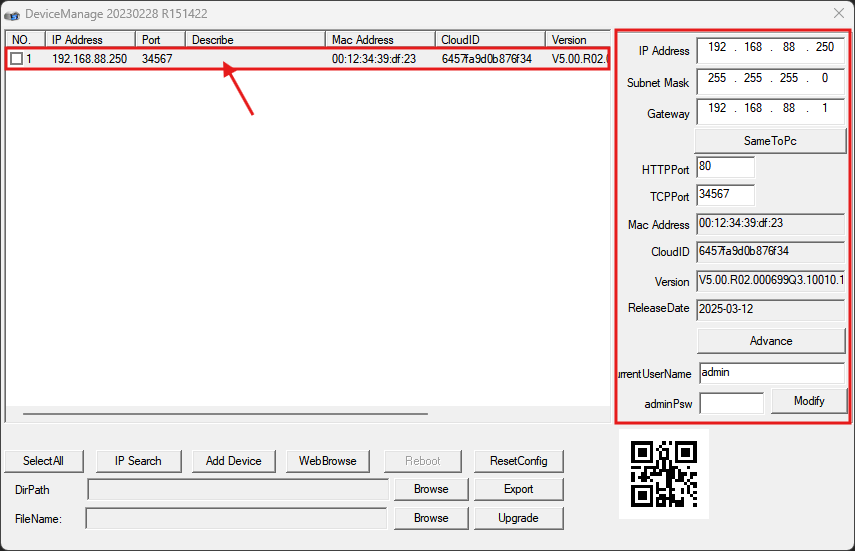
Pro1 has a default static IP 192.168.88.250. It is required to change the Pro1 IP to the same subnet as Centroid or Pro2 device before binding to them.
- Download and install the FFC Pro1 & CCTV Configuration Tool
- Run the tool, perform an IP search
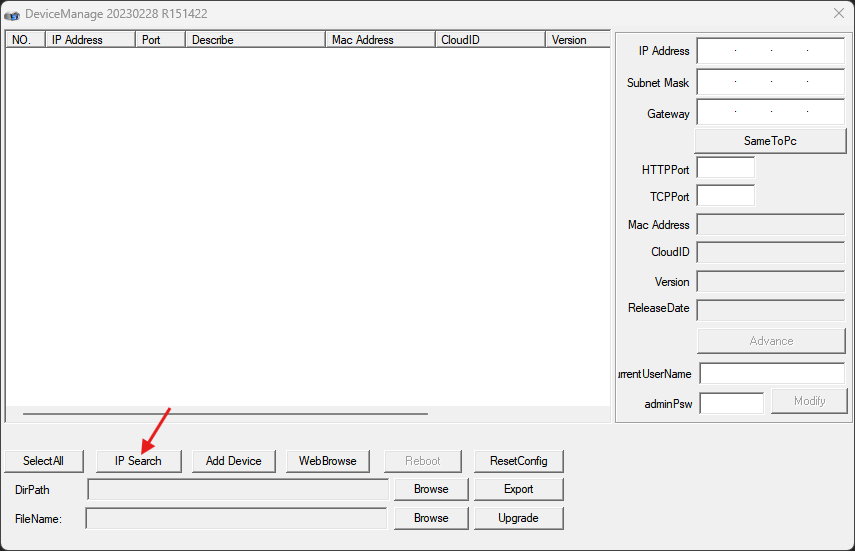
- You should see your devices appear in the list. Click on the row that you wish to change, its current details will be shown on the right column.
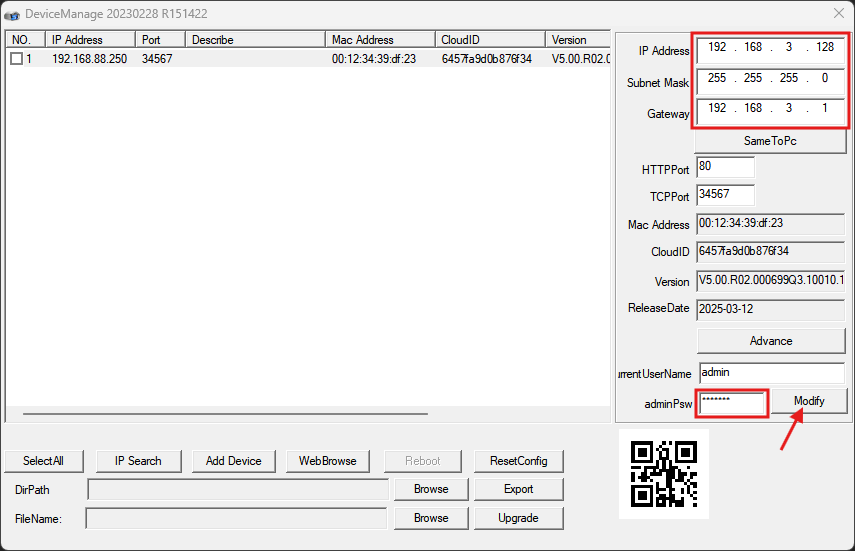
- Enter the IP address, Subnet Mask and Gateway at the top as you wish. Leave the HTTP Port and TCP Port untouched. Then, enter the default password at the bottom. (Please contact FootfallCam for the password). Click Modify.
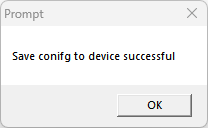
- A success message should show up on the screen
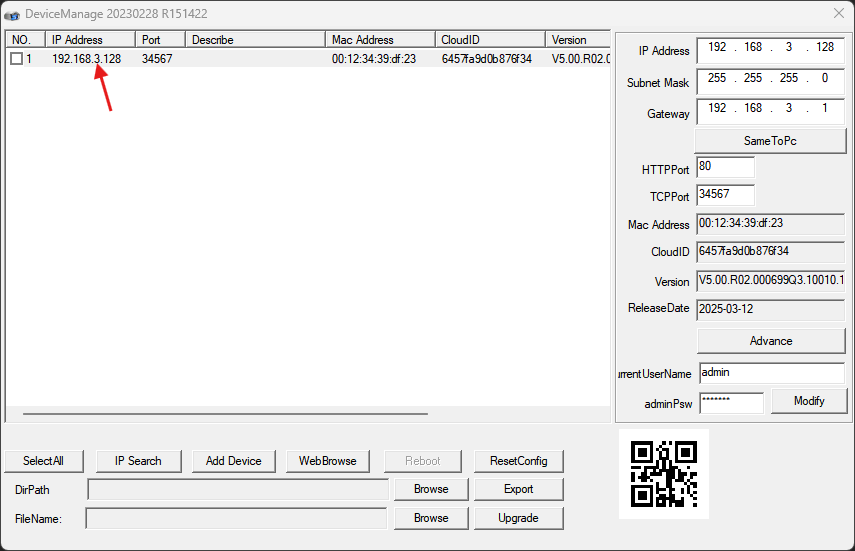
- After that, the IP in the list should reflect the change.
Viewing Live view before binding
After setting the IP, you may proceed to bind it to Centroid / Pro2. But if you wish to see the live view without binding first, you may do so in the browser.
- Download, install and run FFC CCTV Video Player Tool. It is a plug-in and will run in the background.
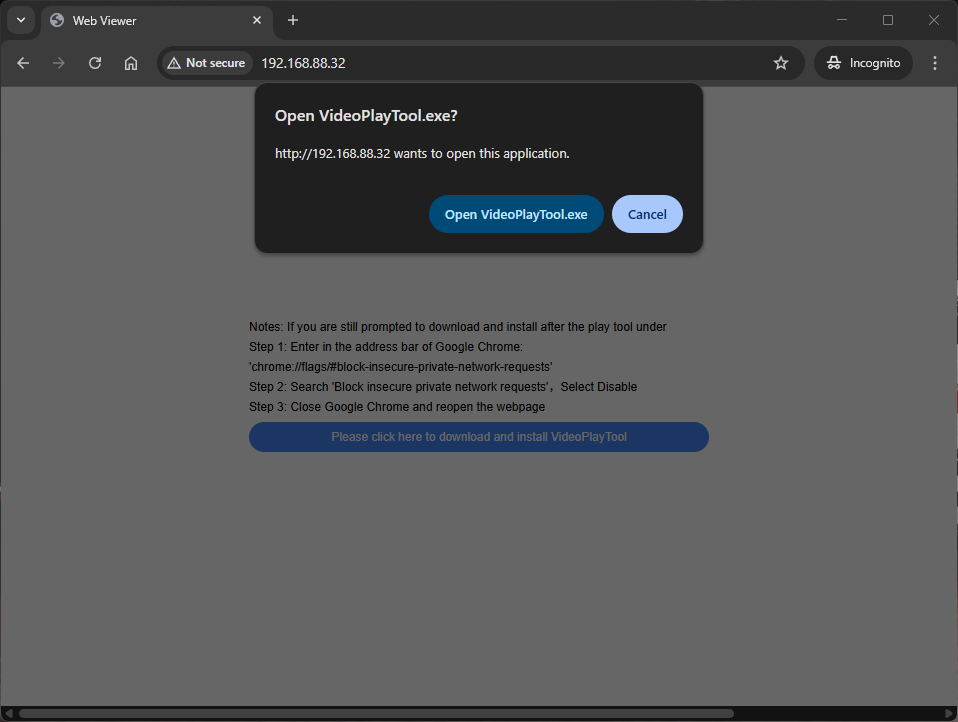
- Visit the IP of the Pro1 you just set in the browser. You will be greeted with the login page. If you see a prompt like so, the tool is likely not running. You may click on the prompt and let it run, refresh the page afterwards. In some cases, you might need to restart your pc after installing the tool if you keep seeing this prompt.
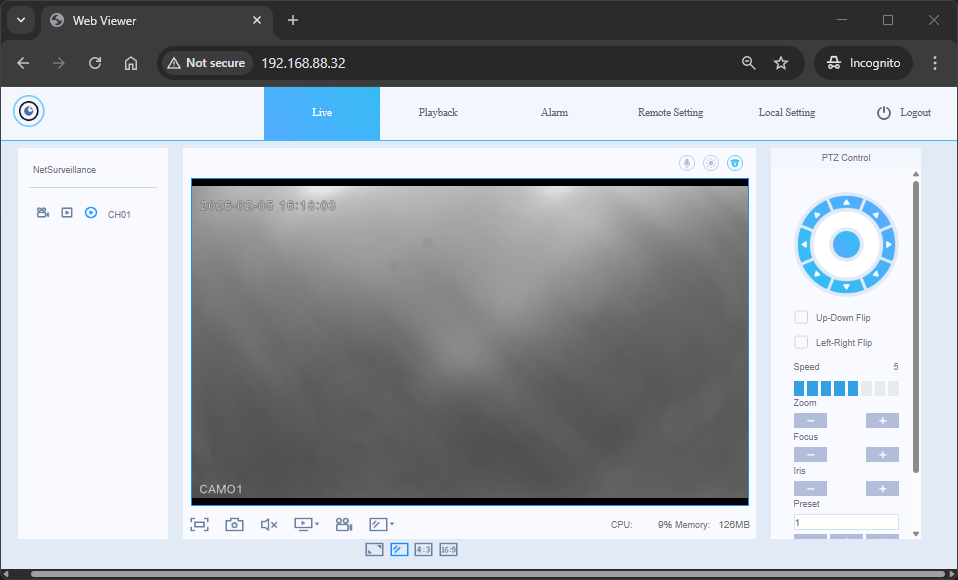
- After logging in, you will see the Live view of the Pro1