













8.1 Quotation Request
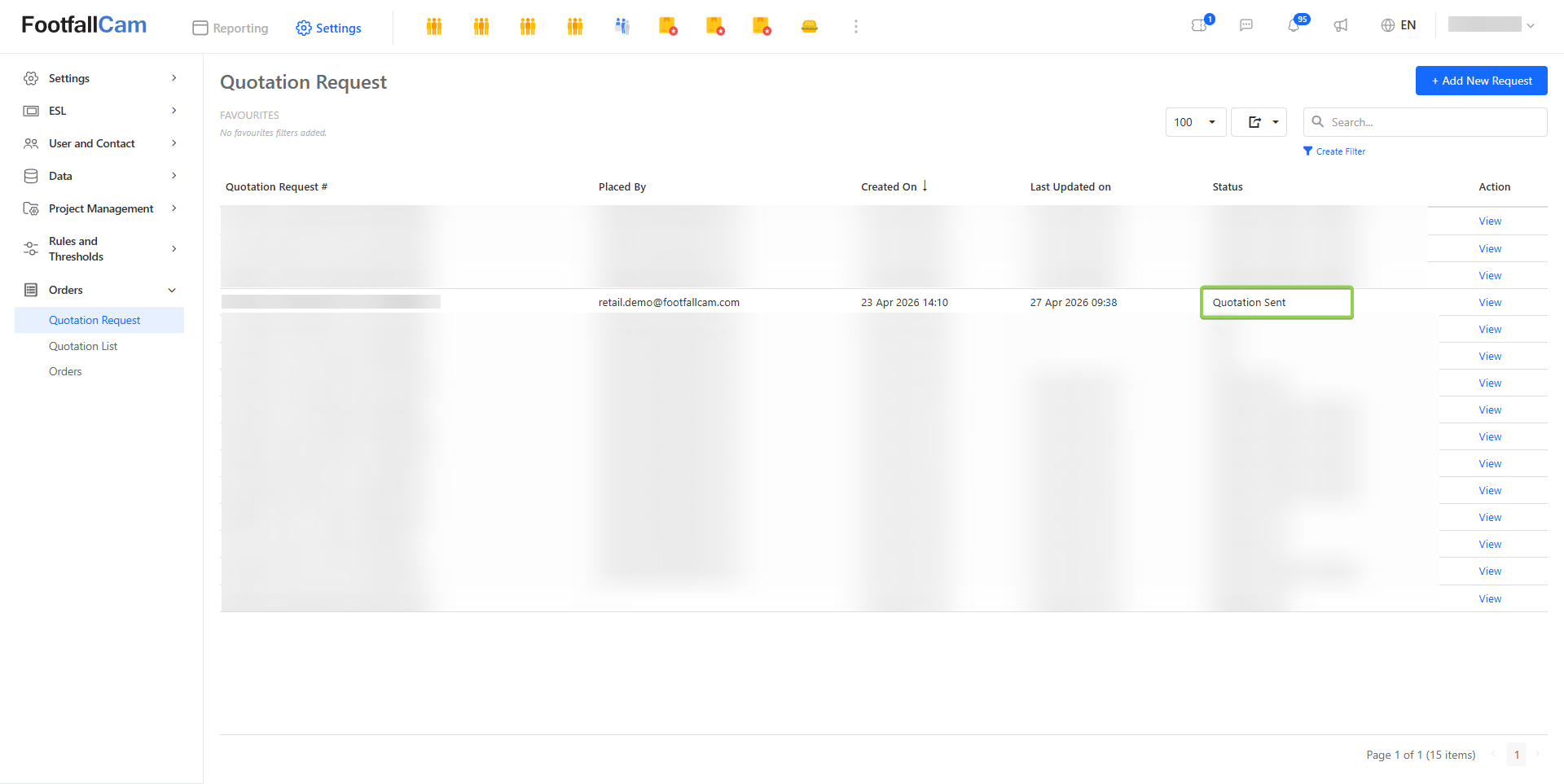
In this section, the user can request a quotation for a specific device or product.
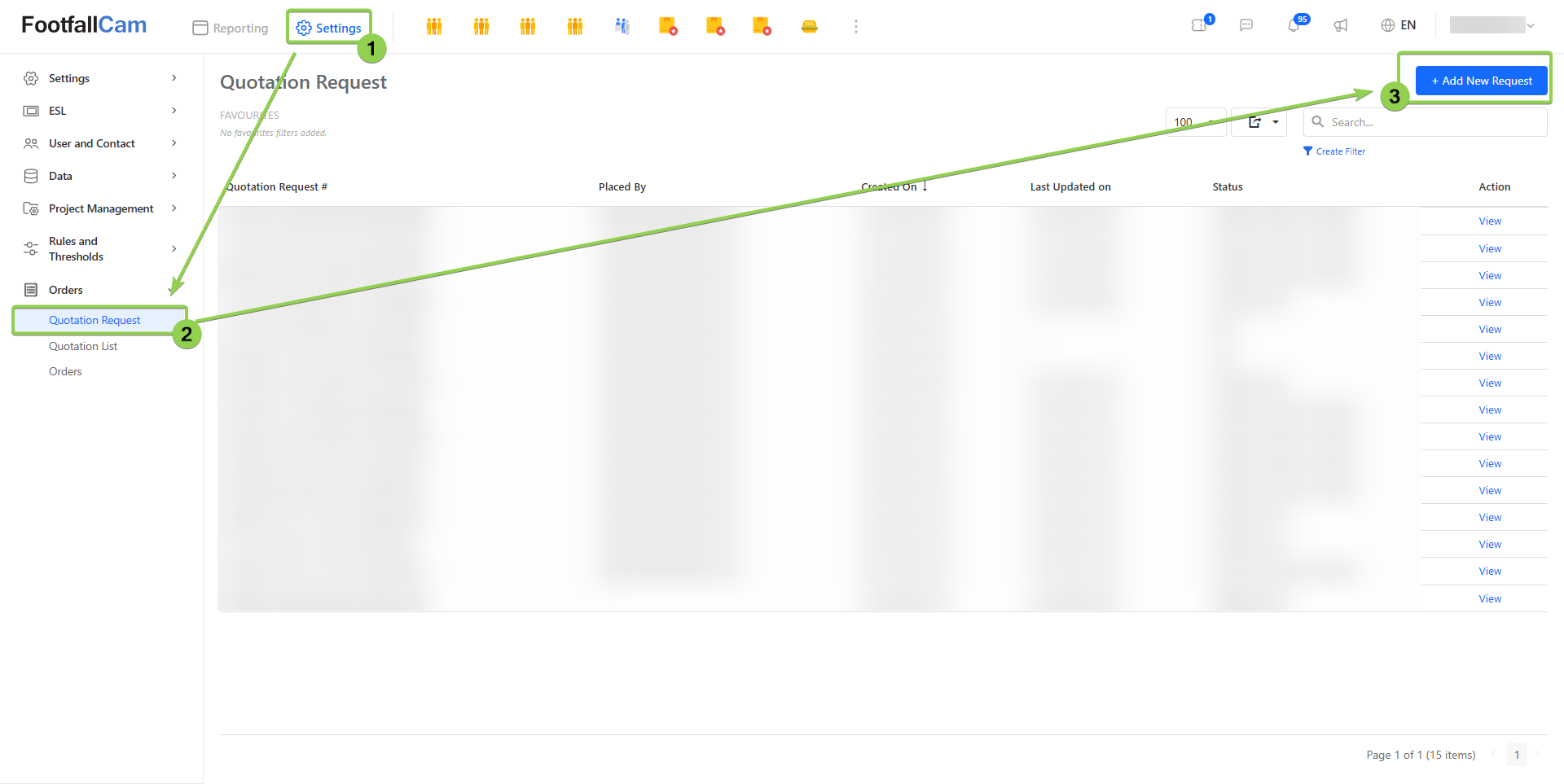
Step 1 - Go to Settings > Orders > Quotation Request > Click on "+ New Quotation Request"
Step 2 - Select the expected devices/products and their quantity, shipping option, and the shipping address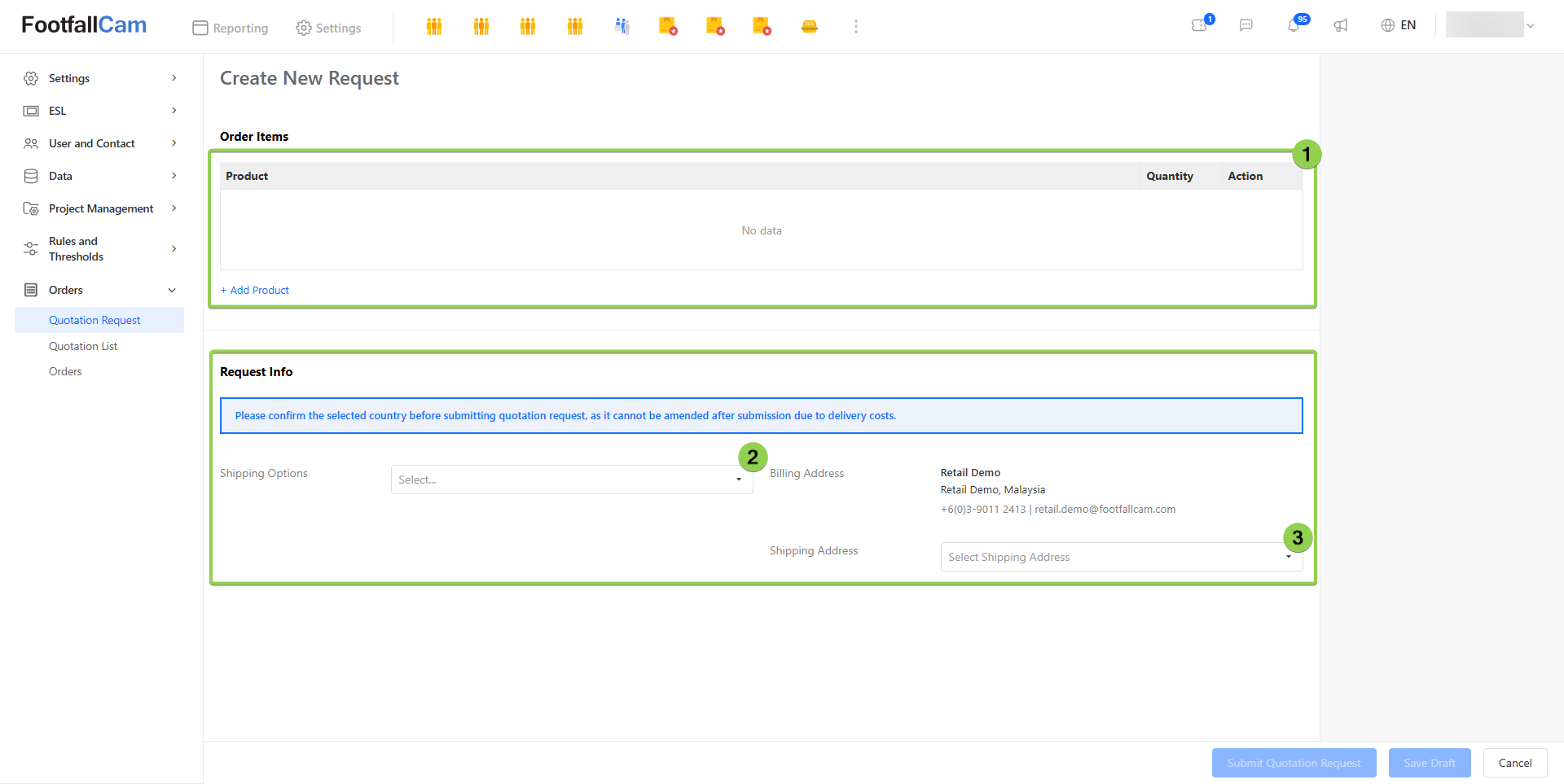
Note: After the request has been submitted and reviewed by FootfallCam Sales, the status will be updated to "Quotation Sent," and the quotation details can be viewed in the Quotation List.
8.1.1 Create Quotation Request Draft
Before submitting the request, users can save the current quotation request as a draft if the information hasn't been confirmed yet (eg, product list, shipping option, or the shipping address).
Please follow steps 1 to 3 to create a request and fill in the information. Although the information hasn't been confirmed, all the fields cannot be null, and then click on the "Save Draft" button.
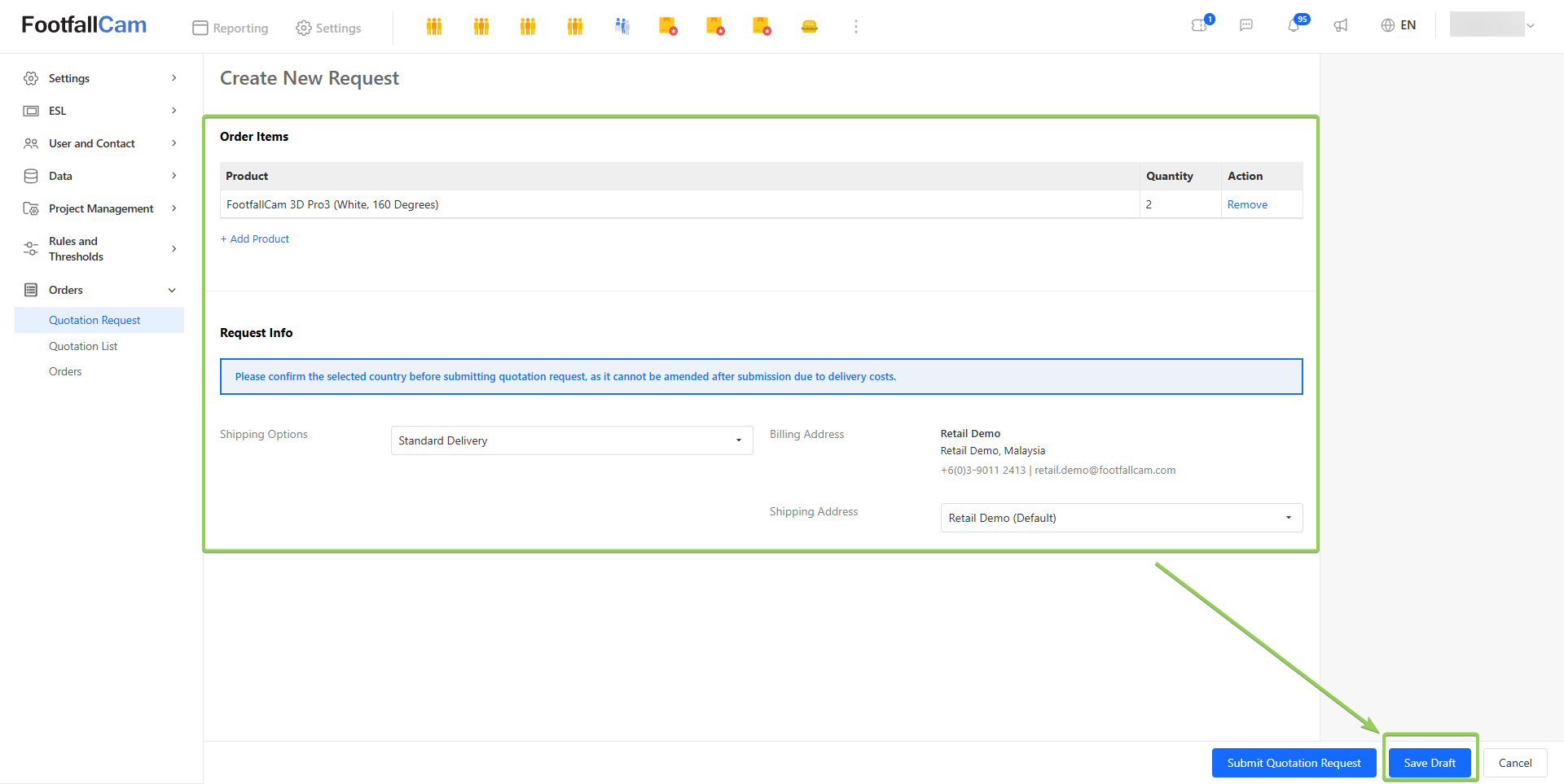
Note: When the quotation request is in draft status, it will NOT be received or processed by FootfallCam Sales.
8.1.2 Update Quotation Request Draft
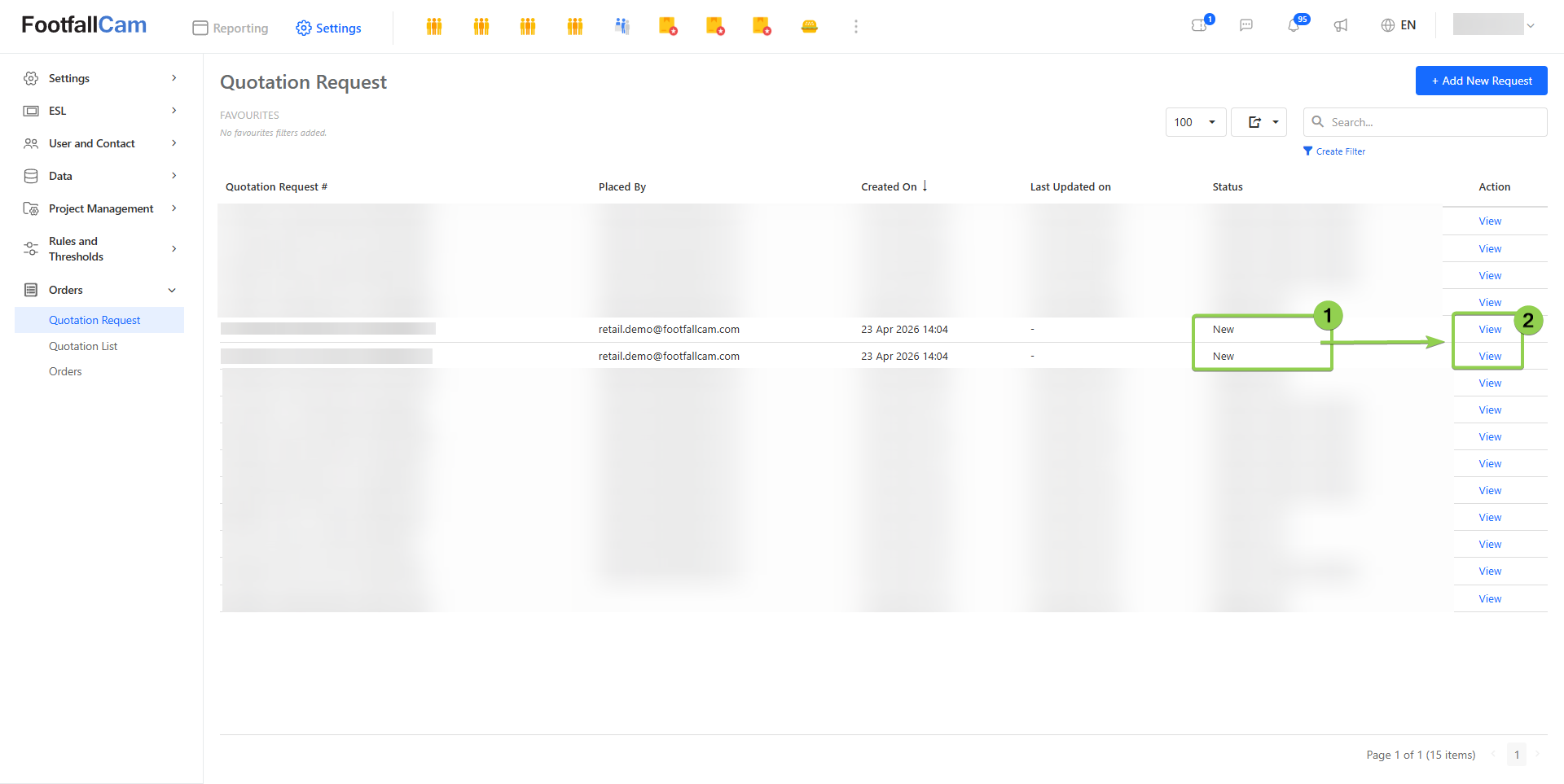
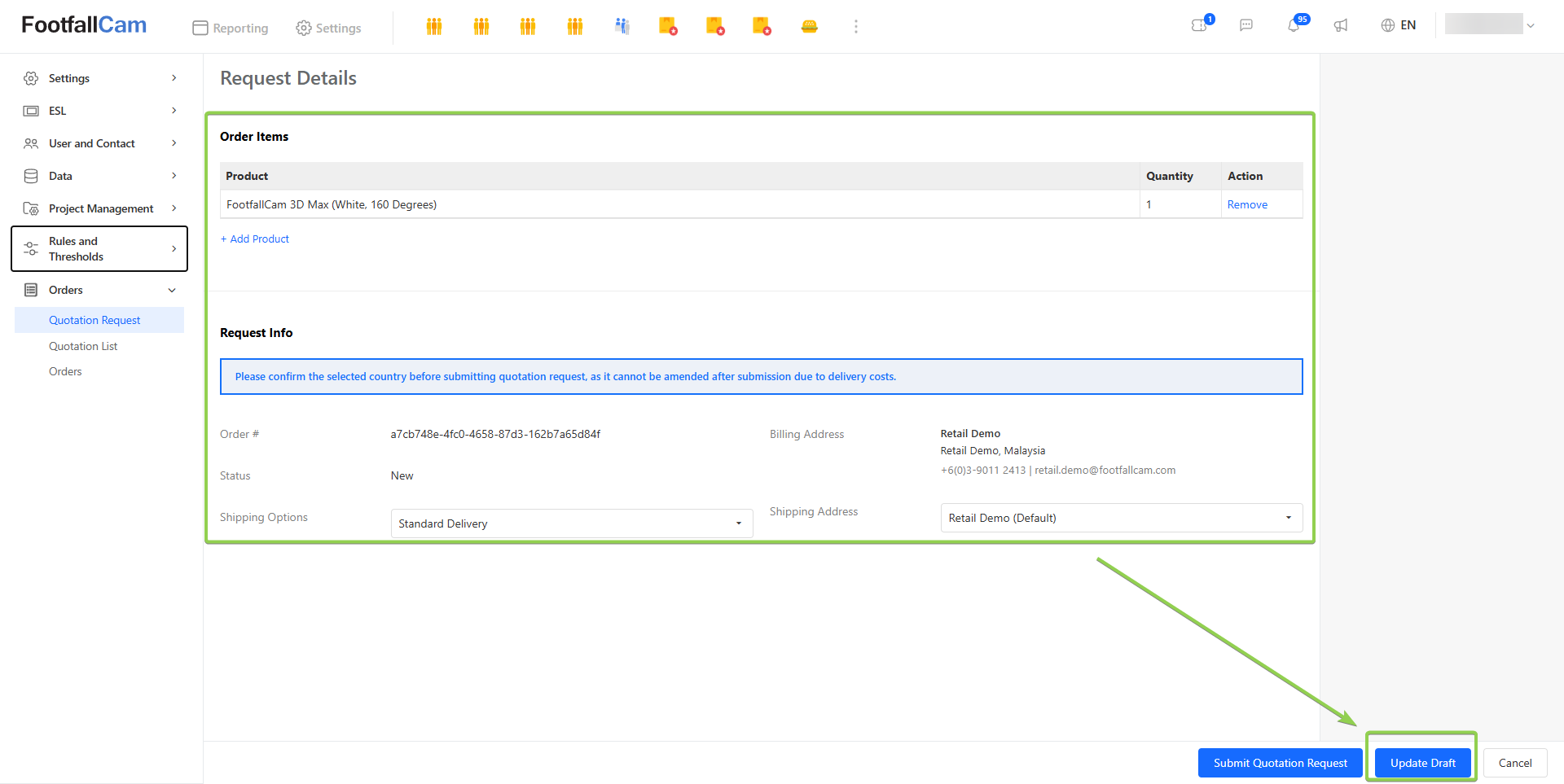
After creating and before the quotation request has been submitted, the user is allowed to make any edits in the quotation request and to save it until they click on the submit button.
Step 1- Click on the "View" when the status is under "New"
Step 2 - Edit the columns and click on "Update Draft" to save the changes.
8.1.3 Confirm and Submit Quotation Request
After confirming all the information (Product List, Shipping Option, and Shipping Address), the users need to click on the "Submit Quotation Request" to submit the request.
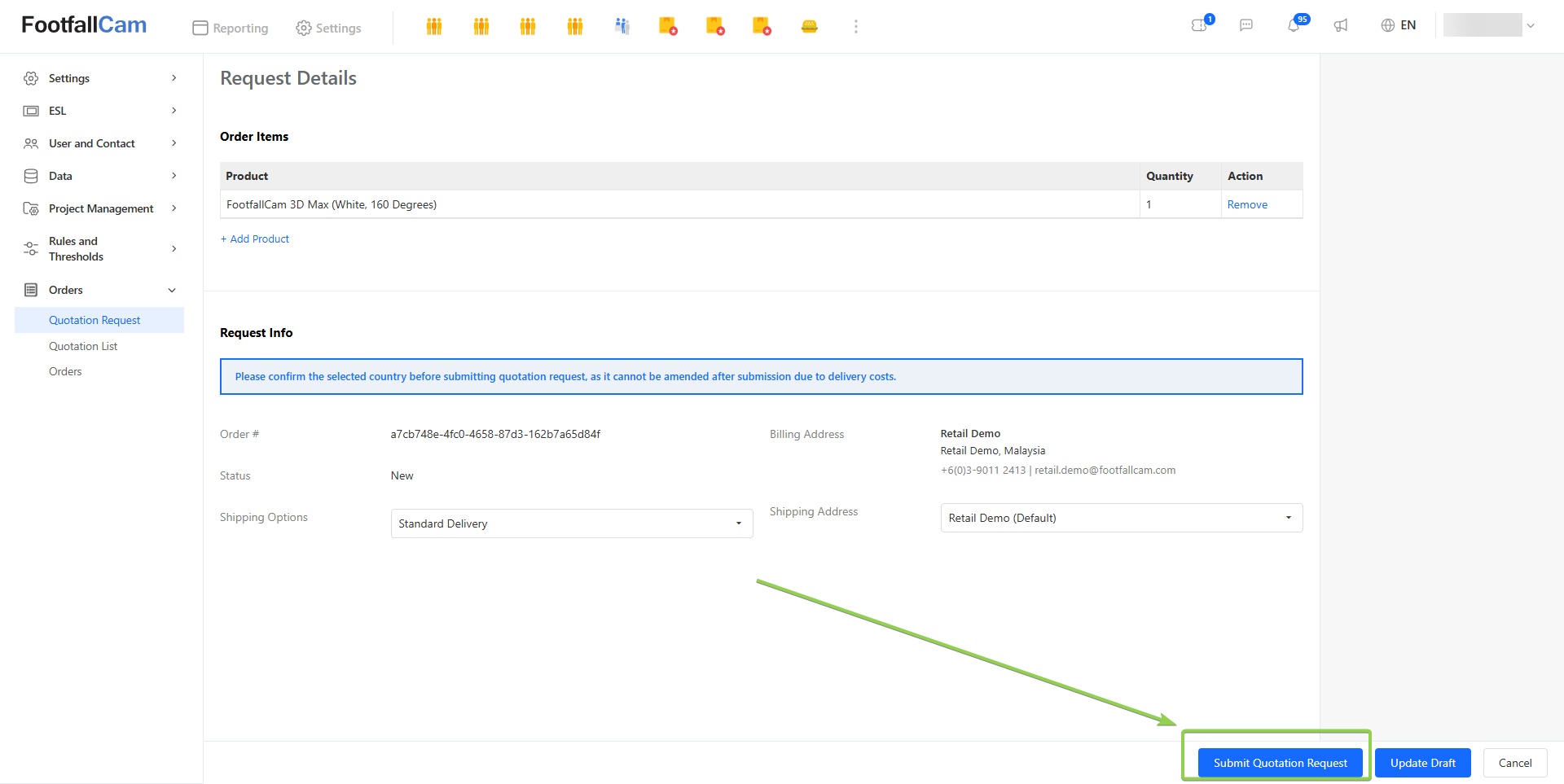
Note: FootfallCam Sales will receive the request only after it has been submitted, and the status is "Quotation Request Confirmed."
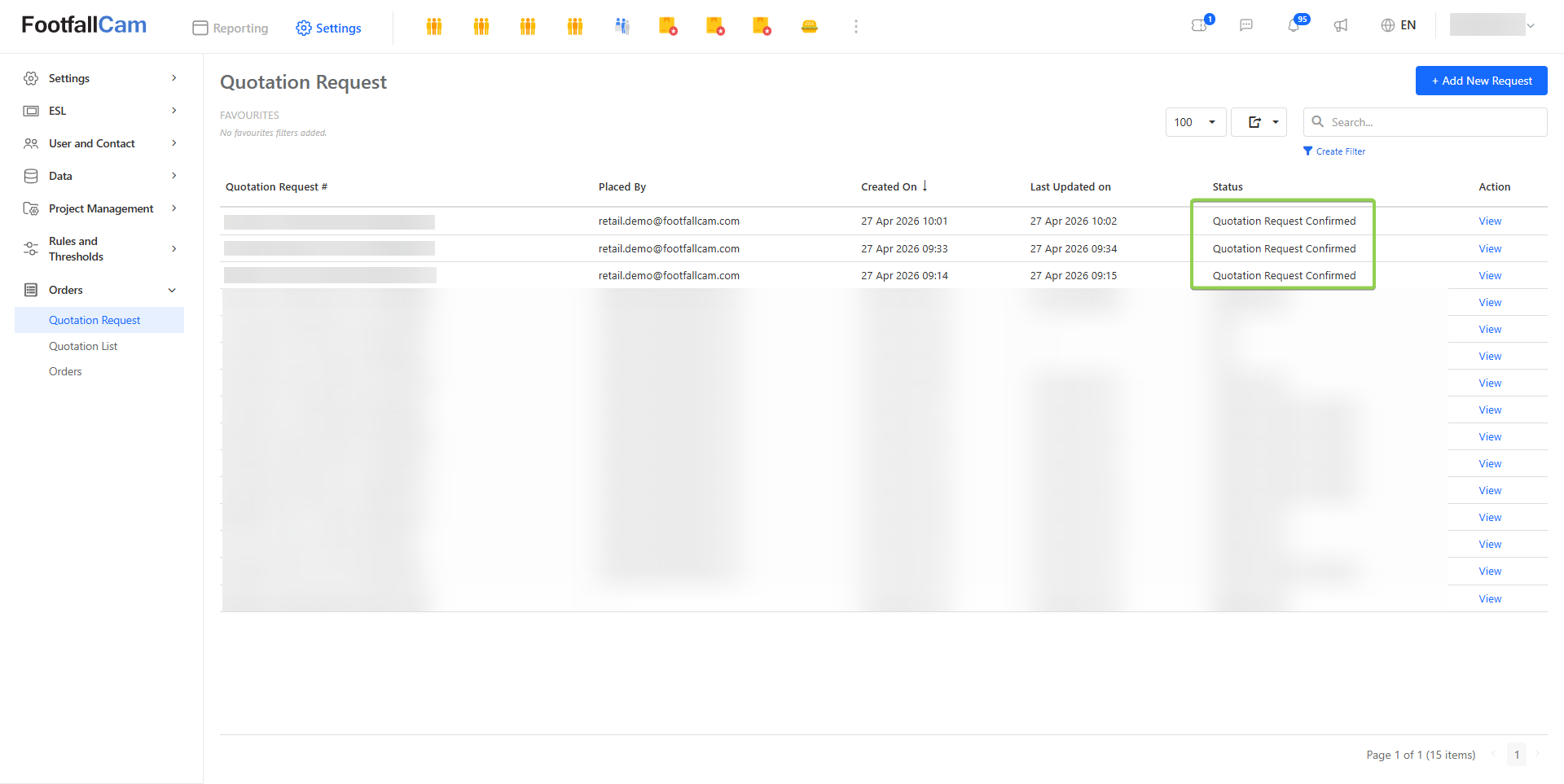
8.2 Quotation
In this section, the users can view the related pricing of the expected product list in the quotation request.
Step 1 - Go to Settings > Orders > Quotation List > Click on "View" to open the form view to view the detailed information
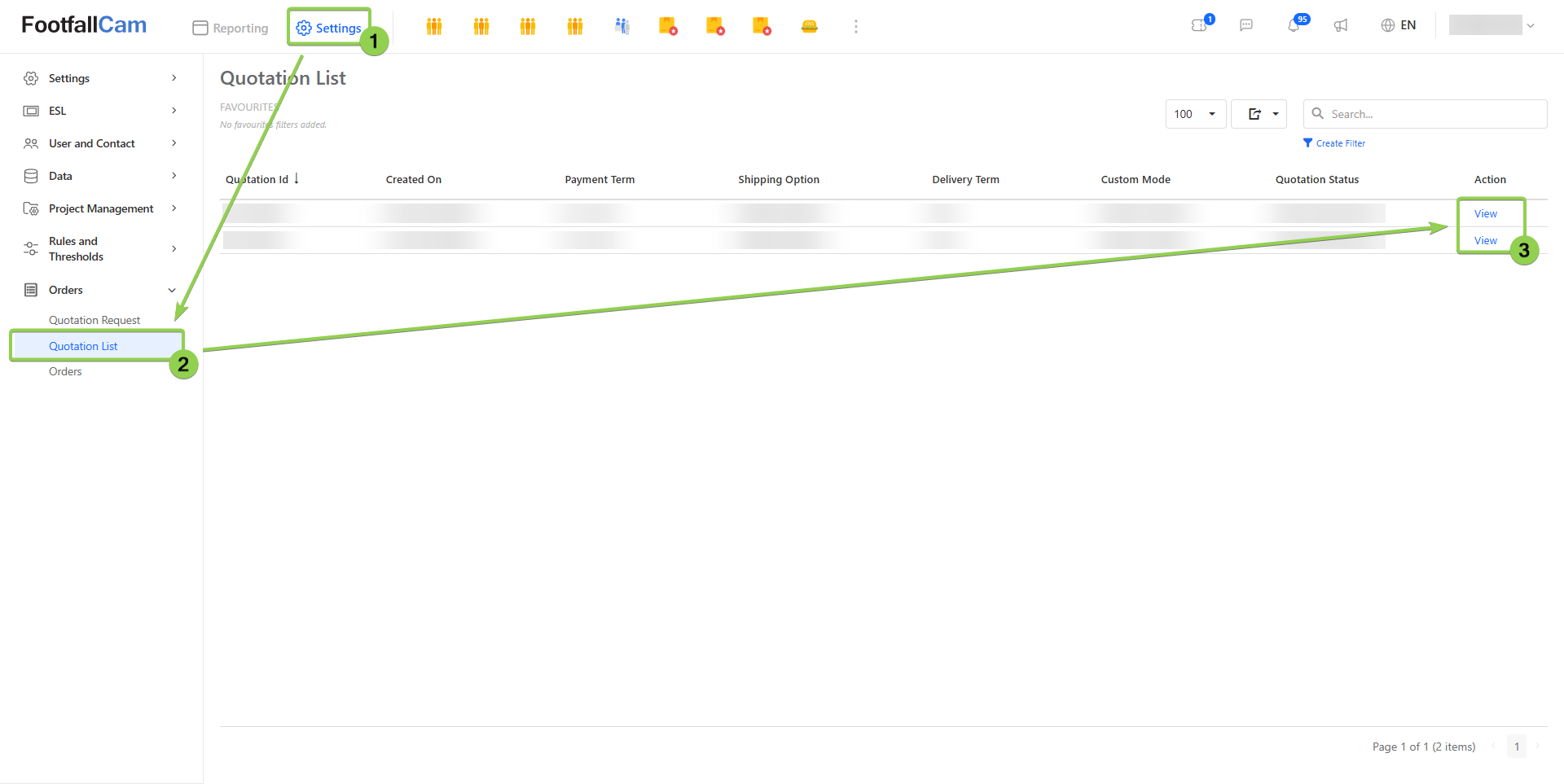
8.2.1 Confirm and Upload Payment Receipt
After receiving the quotation, the required information must be confirmed in order to proceed with the purchase.
Step 1 - Confirm the HS Code, Item Description, and the Declare Value for each of the products.
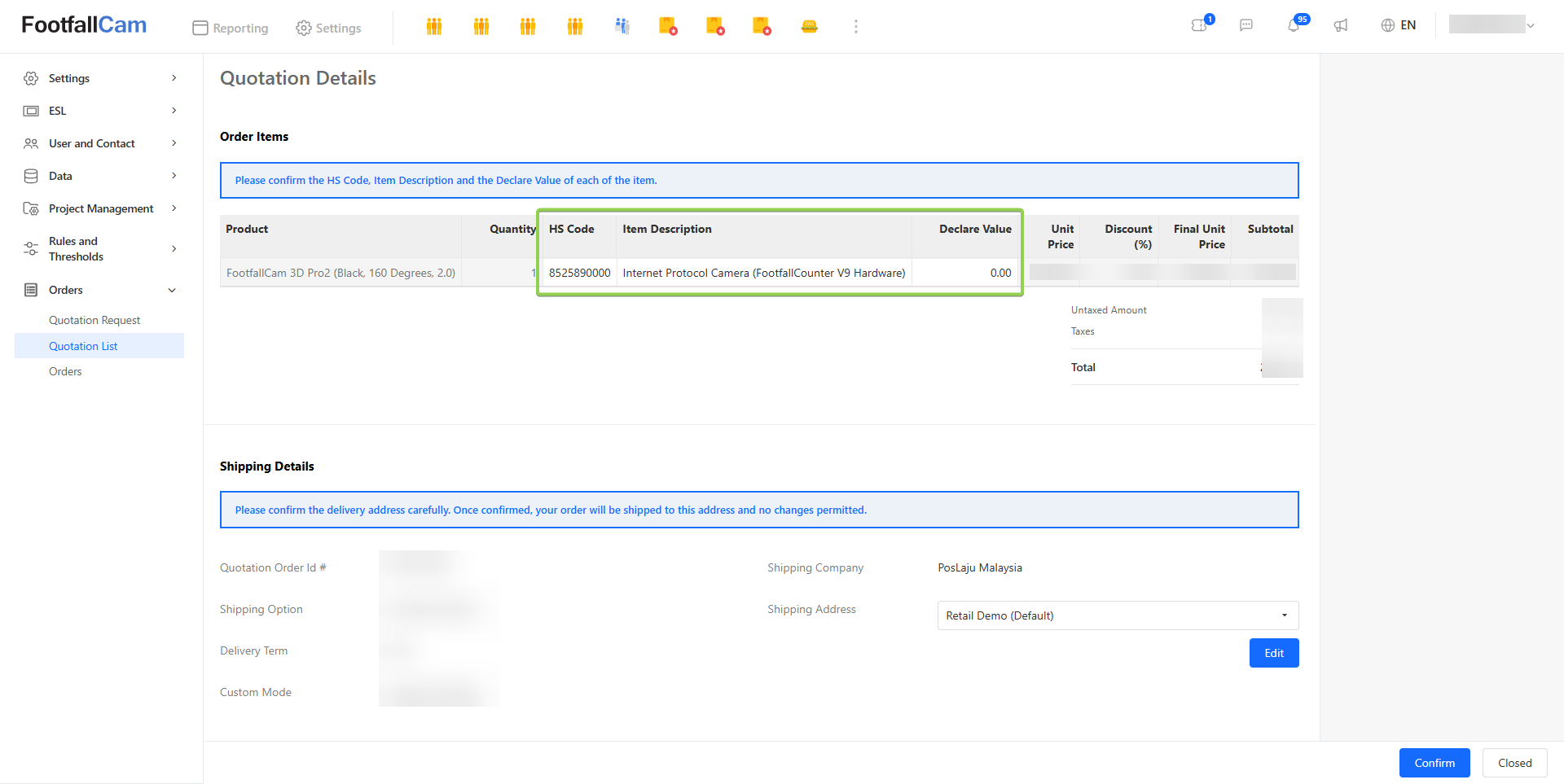
Step 2 - Confirm the Shipping Address. If you need to modify the current shipping address, click the "Edit" button to open the pop-up and make the necessary changes.
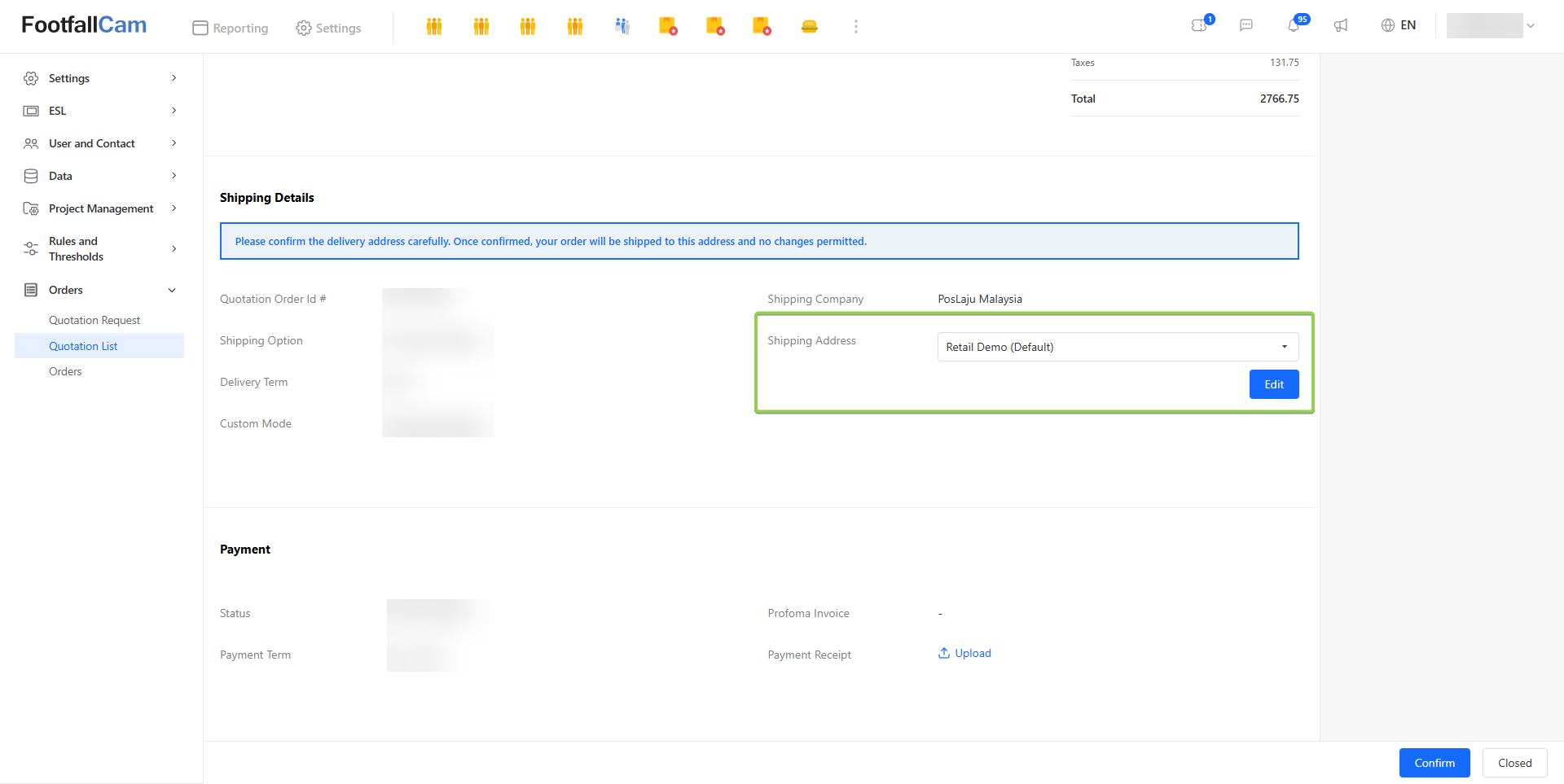
Note: The updated shipping address MUST have the SAME country as the current address. If you need to select a DIFFERENT country, please create a NEW quotation request.
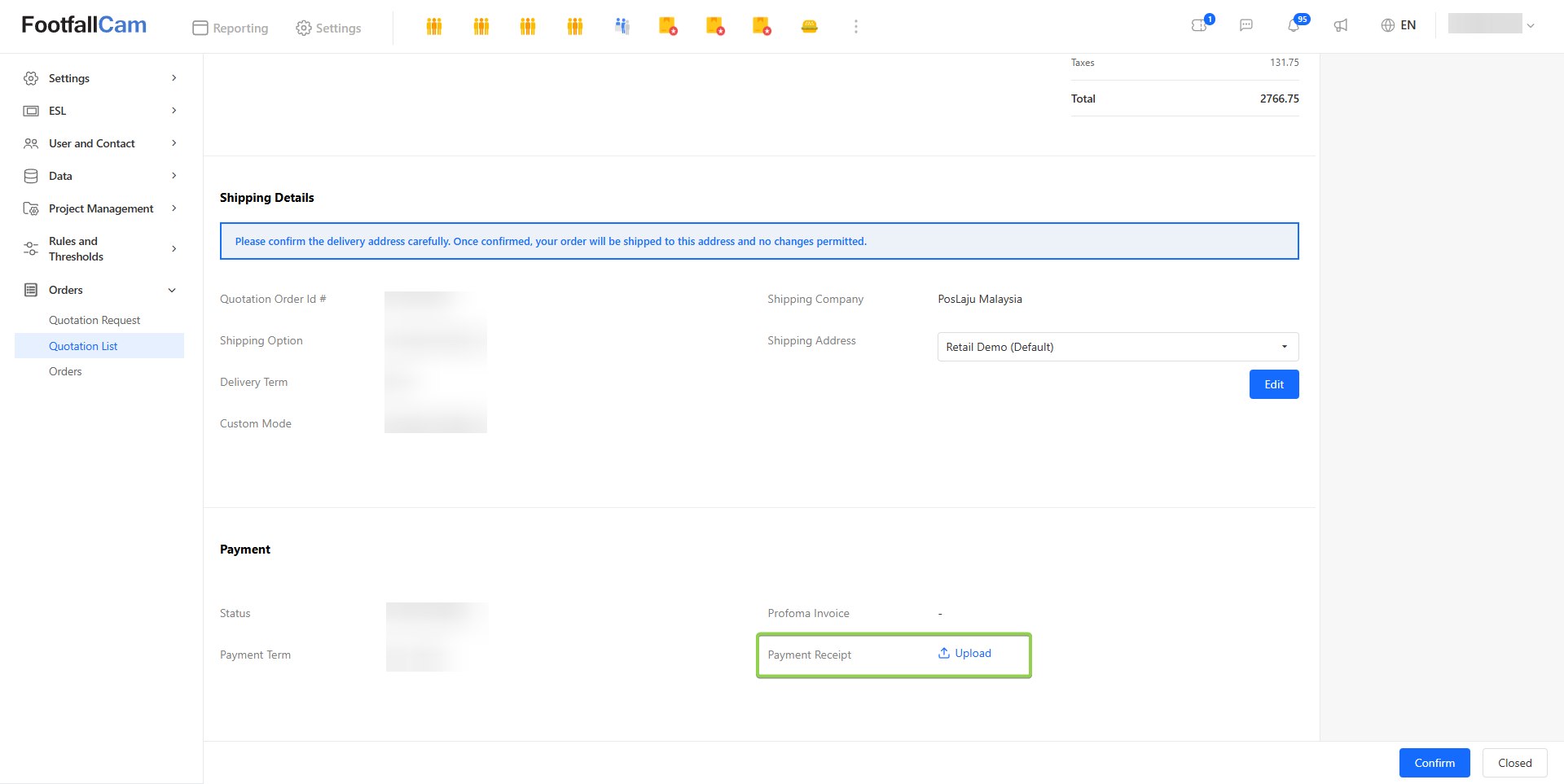
Step 3 - Upload Payment Receipt. Once the payment is completed, please upload the receipt (screenshot or file).
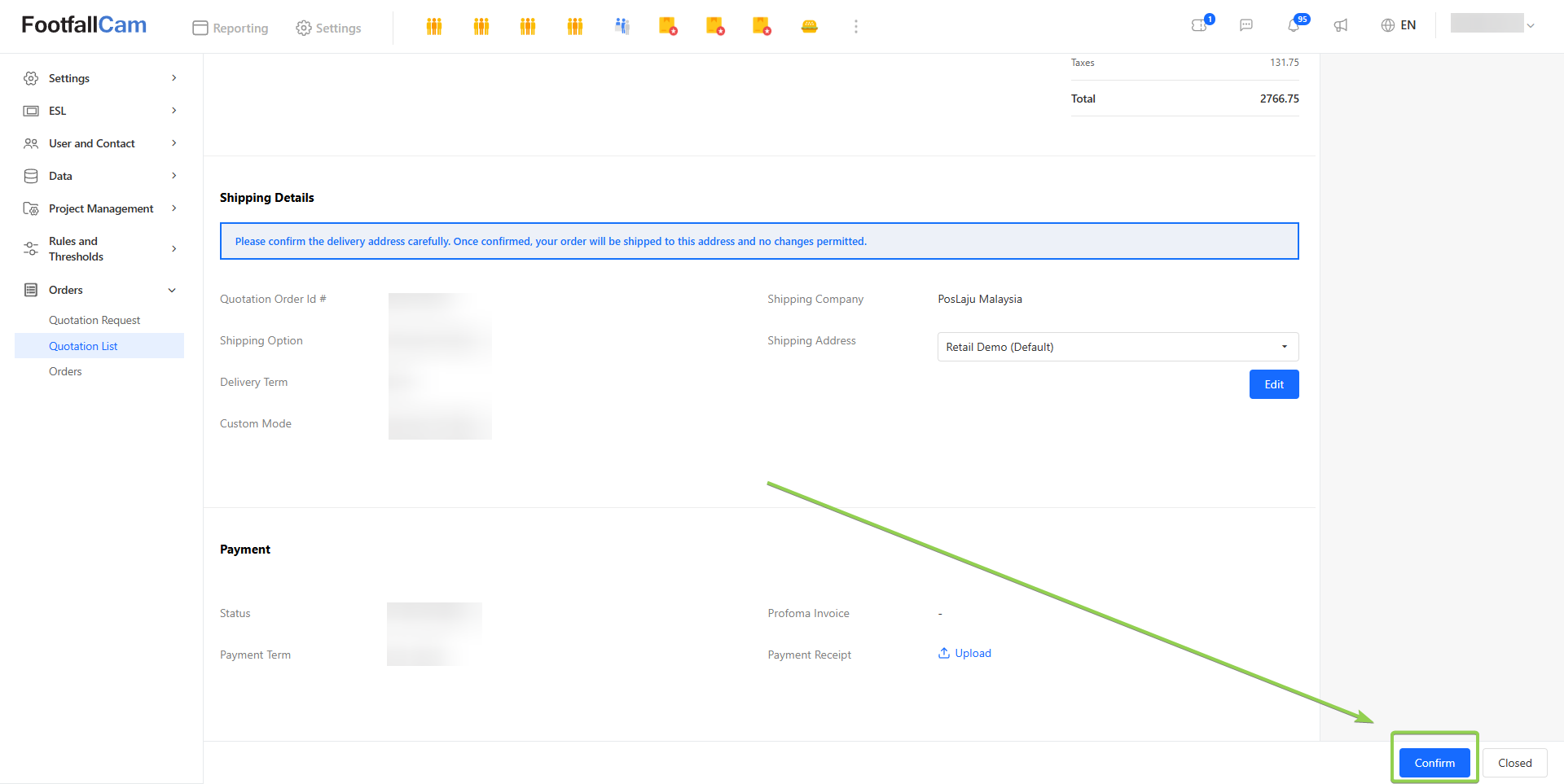
Step 4 - Please click the "Confirm" button to update the quotation details. Once confirmed, no further changes can be made.
Note: Once FootfallCam Sales has reviewed the payment slip and processed the update, the status will change to "Payment Received."
8.3 Orders
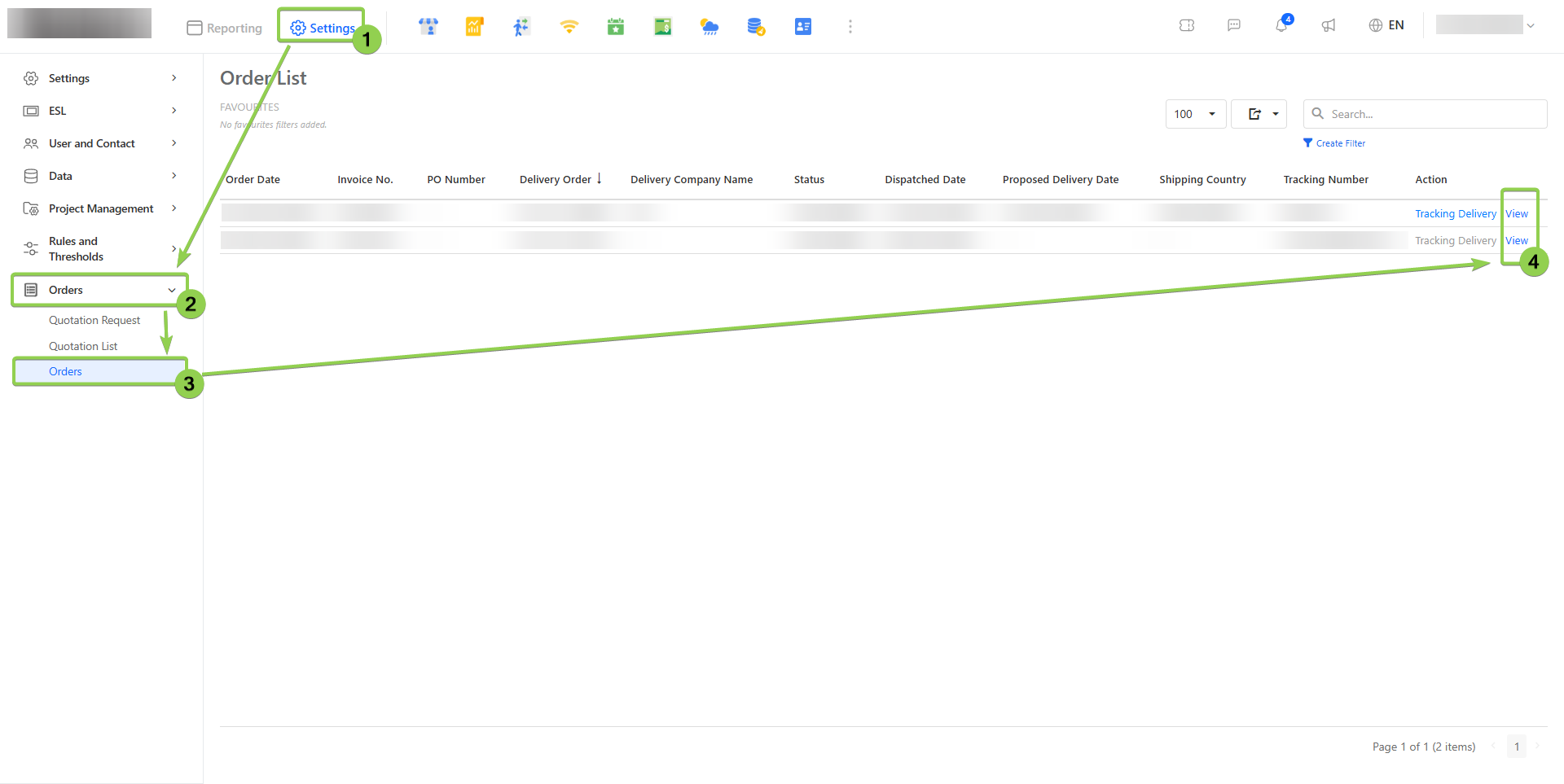
This section allows users to view and track their orders. Go to Settings > Orders > Orders and click on "View" to open the form view