











Why?
- Validates High-Value Shelf Placement: Confirms exact spatial coordinates of shopper interactions, providing verified ground-truth data to evaluate high-traffic physical touchpoints across store layouts.
- Audits Space Utilization Accuracy: Filters out false physical contact (e.g., shoppers passing near shelves without touching) so lease rates, endcap valuations, and layout decisions are based on confirmed physical engagements rather than accidental foot traffic.
- Ensures Data Trust for Shelf Restocking: Guarantees that automated inventory alerts and restock triggers reflect real product movement off shelves rather than false detections.
Target Audiences:
Property Teams, Marketing Teams & Store Managers
1. Workspace Overview & Shelf Selection
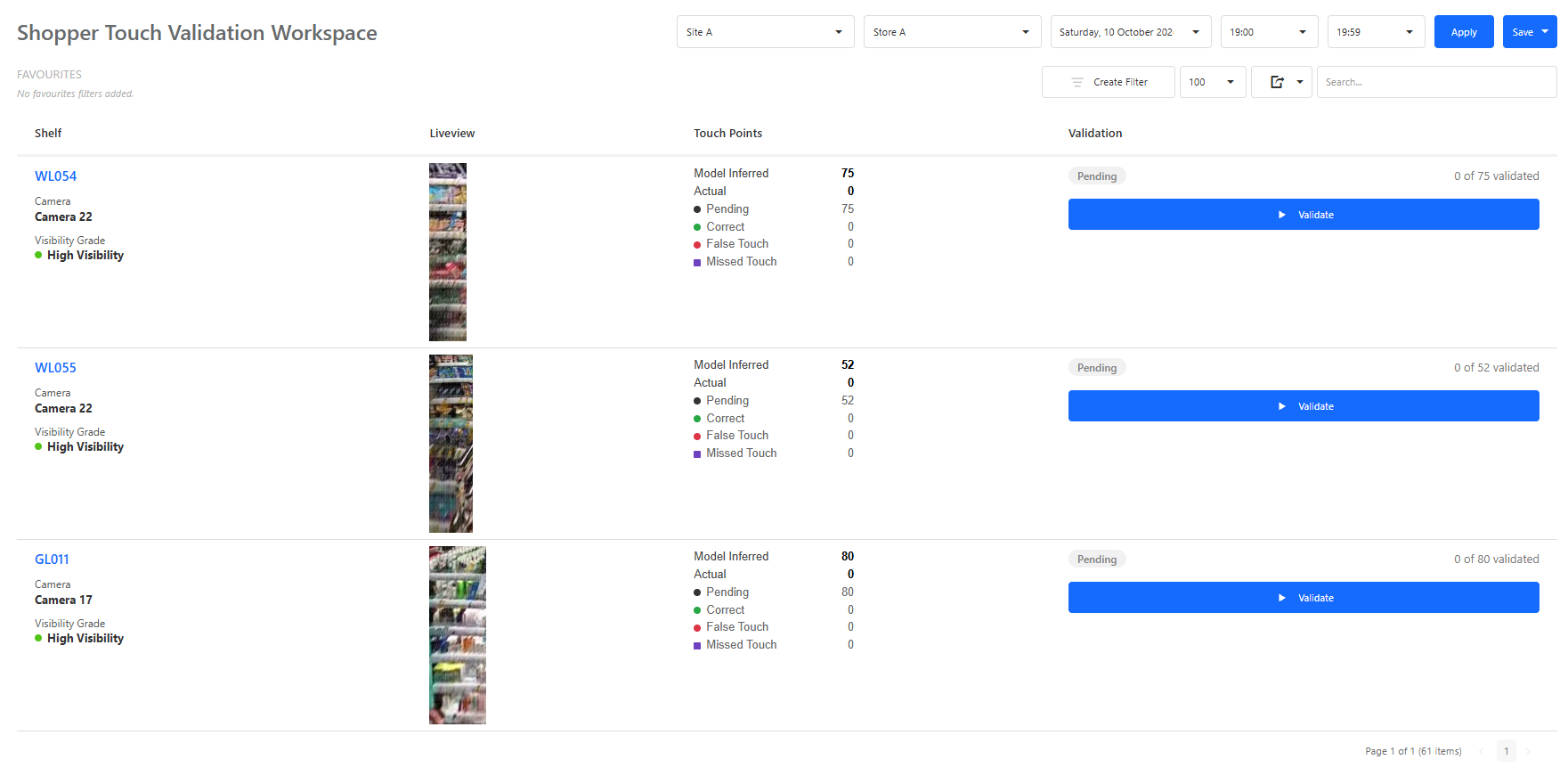
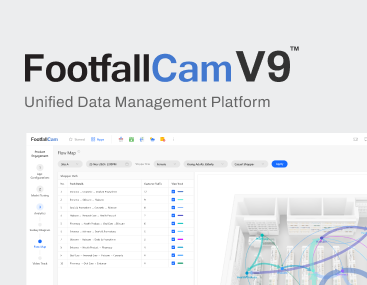
Upon accessing the workspace, you are presented with a detailed summary table listing all monitored shelf units.
- Filtering & Navigation: Use the top dropdown filters (Site, Store, Date, and Time Range) to refine the shelf list to a specific operational window.
- Shelf Information Cards: Each row represents a single shelf unit and displays:
- Shelf ID: Unique identifier for the fixture (e.g.,
S01,S02). - Camera & Visibility Grade: The assigned camera ID and camera angle visibility assessment (e.g., High Visibility, Medium Visibility, Low Visibility).
- Liveview Thumbnail: A snapshot preview of the physical shelf.
- Touch Points Summary: Total counts for Model Inferred vs. Actual validated touch points.
- Validation Progress: Real-time indicator showing completed vs. total count of inferred (e.g.,
0 of 75 validated).
- Shelf ID: Unique identifier for the fixture (e.g.,
- Initiating Validation: Click the blue Validate button on the right side of any shelf row to launch the detailed inspection interface for that unit.
2. Interactive Validation View
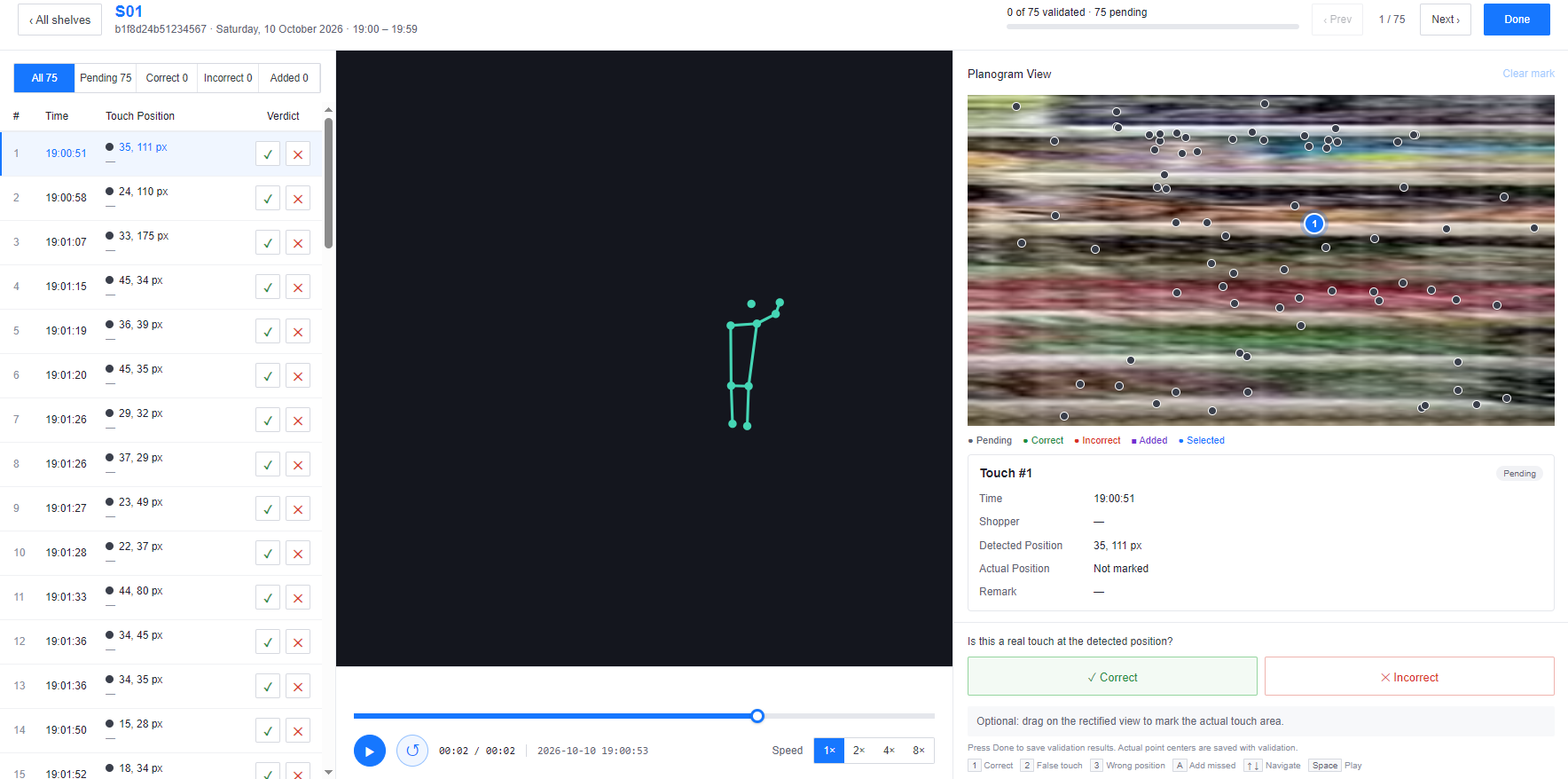
The detail view consists of three primary interactive panels designed to compare AI model detections against video ground truth:
2.1. Left Panel: Inferred Event List
- Displays a chronological list of all detected touch points for the selected shelf.
- Filter events using the top tabs: All, Pending, Correct, Incorrect, or Added.
- Each row displays the event timestamp, pixel coordinates ($X, Y$), and current verdict status.
2.2. Center Panel: Live Motion & Skeleton Player
- Selecting an event from the list or planogram automatically loads the video snippet for that exact timestamp.
- Plays back the live skeleton movement overlay in real time, allowing you to observe the customer's posture, arm trajectory, and reach toward the shelf.
- Includes standard playback controls (Play/Pause, timeline bar, and playback speed multipliers: 1x, 2x, 4x, 8x).
2.3. Right Panel: Planogram View & Detection Details
- Planogram Overlay: Shows a rectified front-facing view of the shelf with overlaid point indicators representing all inferred touches.
- Interactive Selection: Click directly on any bullet/point on the planogram to load its corresponding video event and details.
- Detection Metadata: Displays specific event parameters, including timestamp, shopper ID, detected pixel position, and actual marked position.
2.4. Step-by-Step Validation Workflow
Follow these steps to audit each inferred touch event:
- Select an Event: Click on a touch point row from the left panel or select a numbered node on the planogram image.
- Review the Motion Capture: Watch the center video player to observe the customer's actual hand movement relative to the shelf.
- Determine Accuracy:
- If the AI correctly identified the touch: Click Correct.
- If the AI identification was inaccurate: Click Incorrect.
- Specify Error Type (For Incorrect Touches):
- No Touch (False Touch): Select this if the customer reached near the shelf or passed by without making physical contact with any product.
- Wrong Position: Select this if the customer touched a product, but the AI-detected coordinate is offset or on the wrong item.
- Mark Actual Coordinate (Optional): When marking a wrong position, click and drag on the planogram view to set the true coordinate where the physical touch occurred.
- Save Progress: Click Done in the top right header once all pending items for the shelf have been reviewed.