











1. What are support 360 Apps
Support 360 provides a centralized platform for customers to view and manage their support activities.
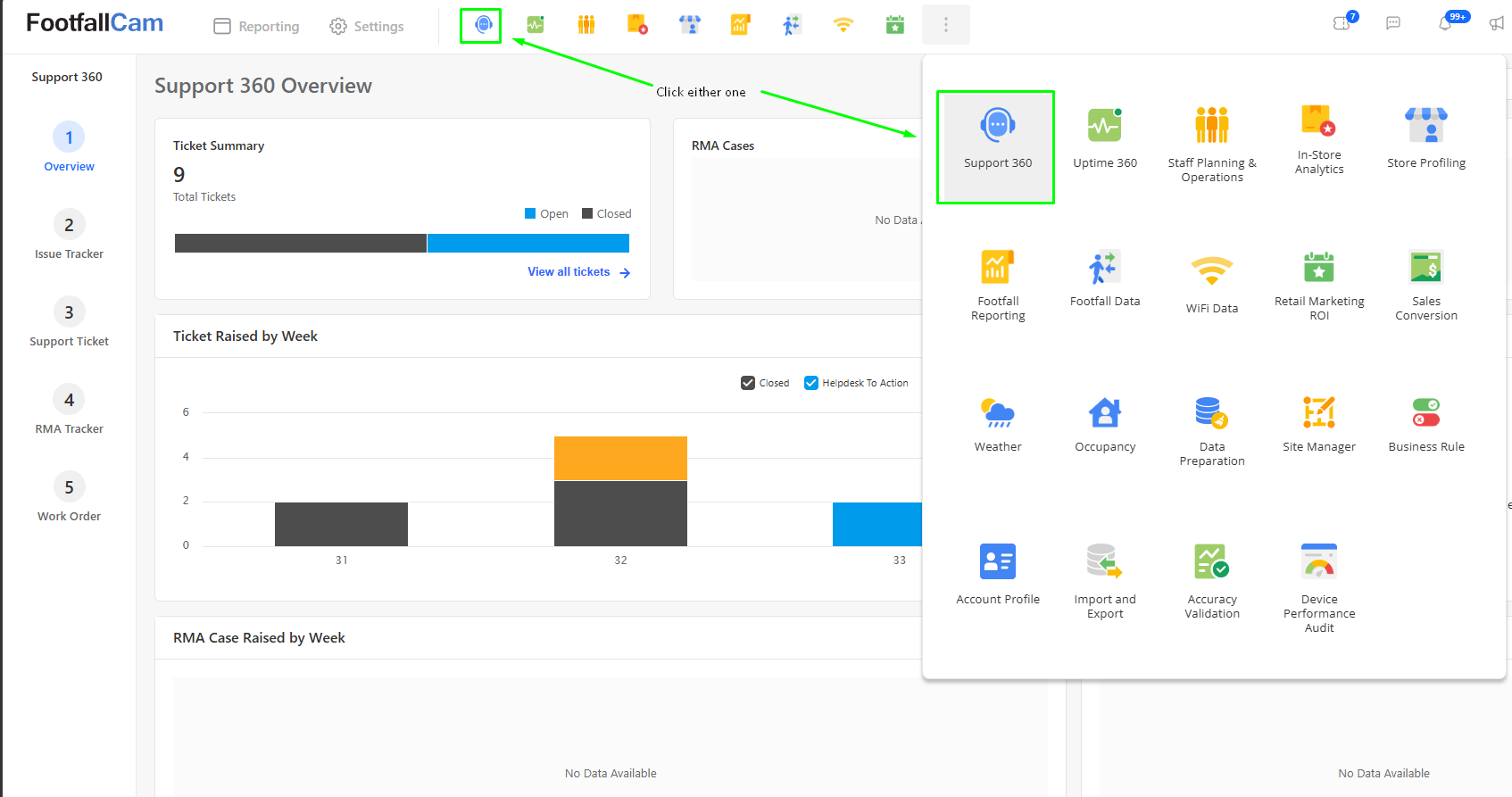
2. Features
Through Support 360, you can:
- View an overview of your support tickets.
- Track issues and tasks raised under your company.
- Review open and closed support tickets.
- Track RMA requests.
- Submit and review engineer callout requests.
Support 360 consists of the following sections:
- Overview
- Issue Tracker
- Outstanding Support Tickets
- RMA Tracker
- Work Order
- New Request
- Review
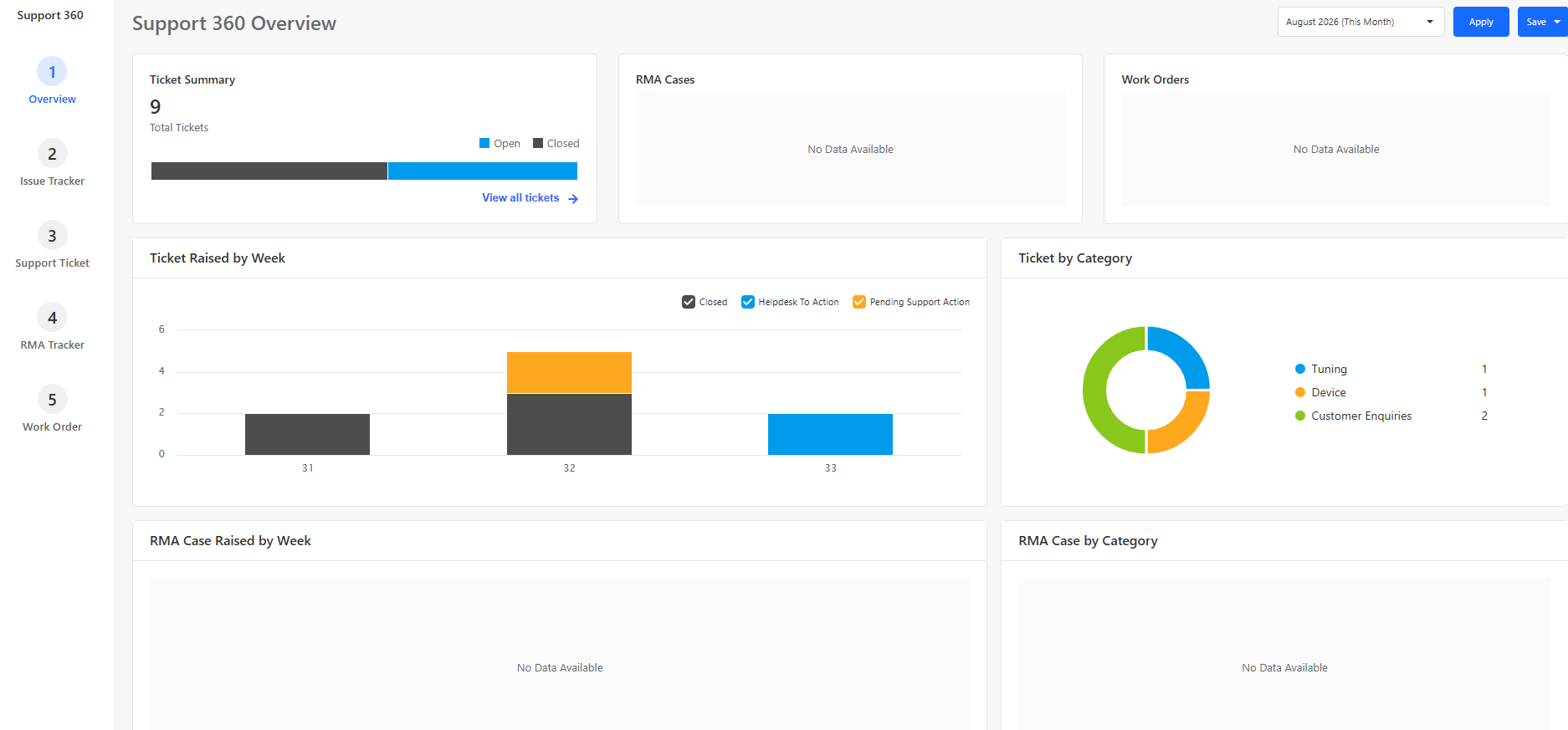
2.1 Overview
The Overview page provides a summary of your company's support tickets.
You can use this page to quickly understand your support activity and monitor the number of open and closed tickets.
What you can do
- View the overall support ticket summary.
- See the number of open tickets.
- See the number of closed tickets.
- Use the monthly filter to view ticket activity for a specific month.
When to use Overview
Use the Overview page when you want a quick summary of your company's support status without reviewing individual tickets.
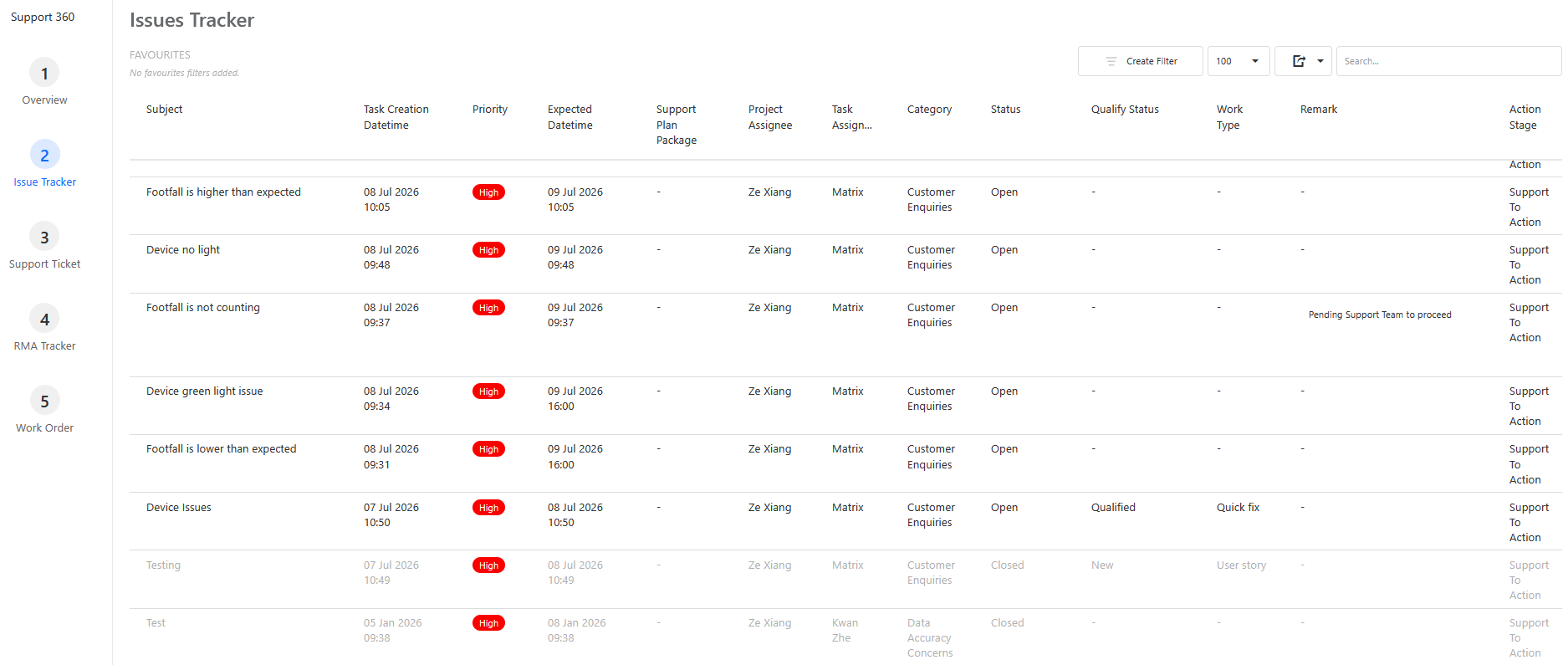
2.2 Issue Tracker
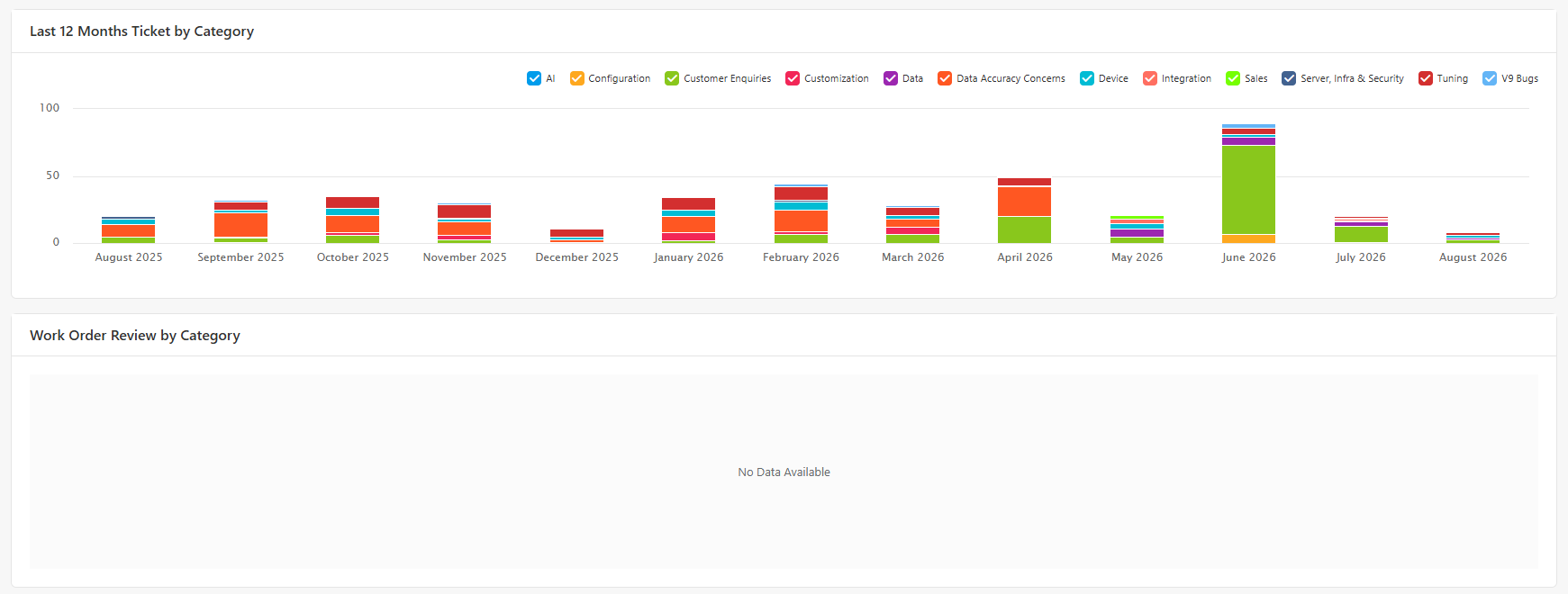
The Issue Tracker allows you to view all tickets and tasks created under your company.
This page provides a detailed list of your company's support-related activities.
What you can do
- View tickets created for your company.
- View tasks created for your company.
- Find and review a specific issue.
- Check the status of your existing support activities.
When to use Issue Tracker
Use Issue Tracker when you want to find a specific ticket or task and review its information.
2.3 Outstanding Support Tickets
The Outstanding Support Tickets page allows you to manage your support tickets in one place. You can raise a new support ticket, view existing tickets, and check the details of both open and closed tickets.
Tickets are displayed in a tree view, allowing you to easily navigate through your support records.
What you can do
- Raise a new support ticket.
- View your open support tickets.
- View your closed support tickets.
- Navigate through tickets using the tree view.
- Select a ticket to view more information.
- Drill into a ticket to open its detailed form view.
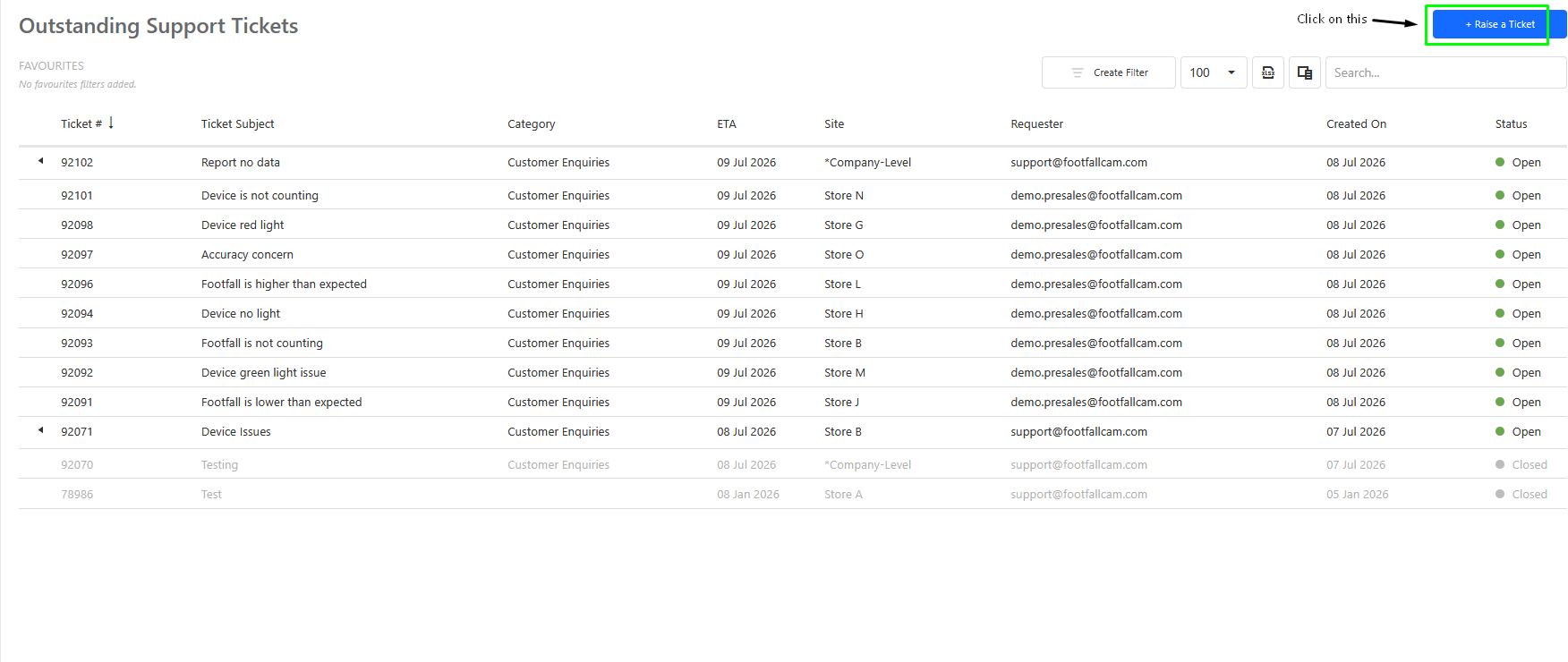
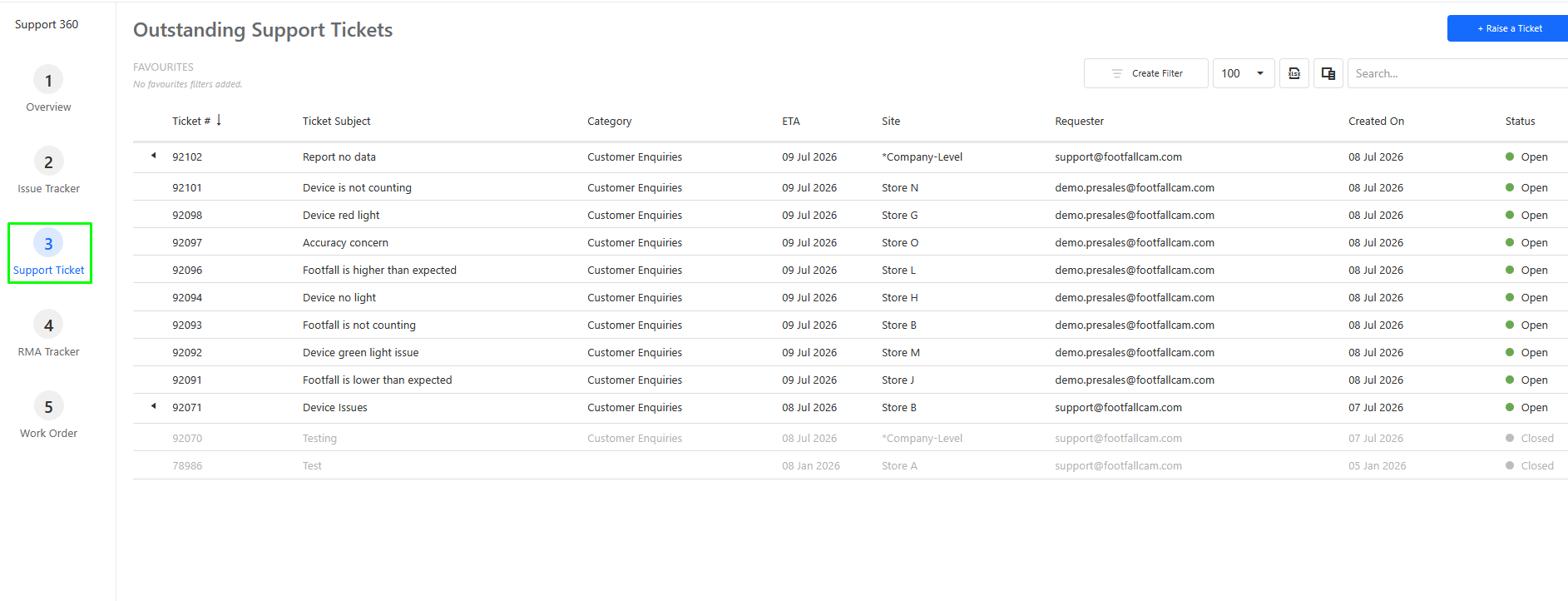 Raising a New Support Ticket
To raise a new support ticket:
- Navigate to Outstanding Support Tickets.
- Select the option to create a new ticket.
- Enter the required information about your issue or request.
- Review the information provided.
- Submit the ticket.
Once submitted, the new ticket will be available in the ticket list for you to track.

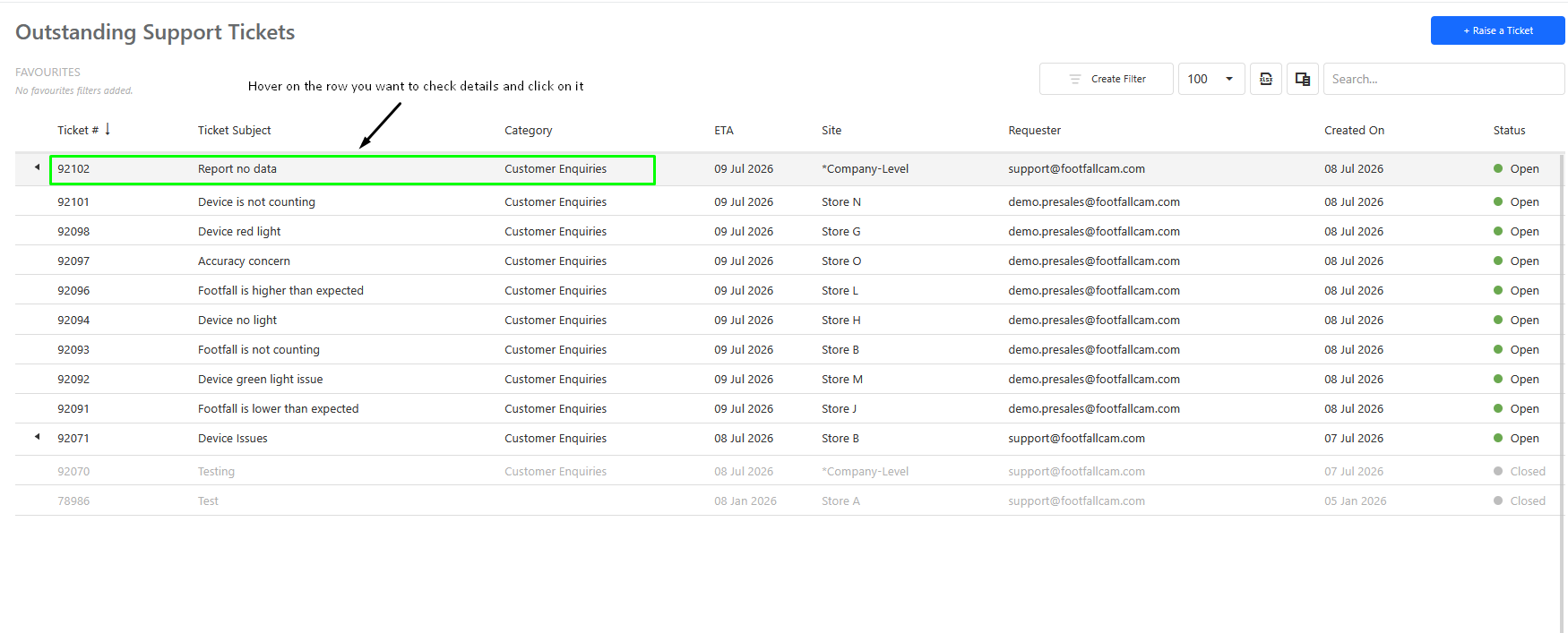
Viewing Ticket Details
To view more information about an existing ticket:
- Locate the ticket in the tree view.
- Select the required ticket.
- Drill into the ticket to open the form view.
- Review the ticket details and current status.
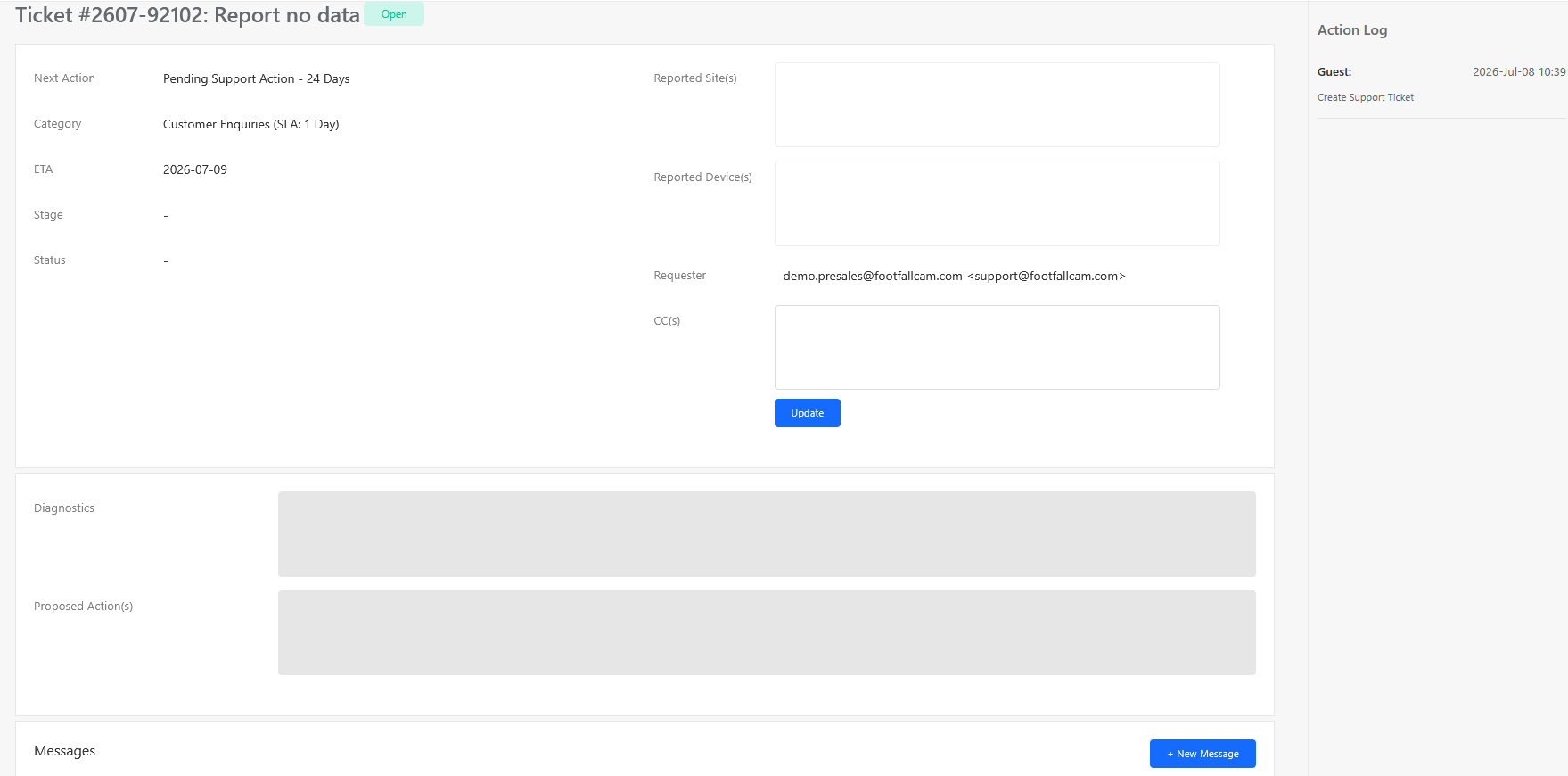
This page can therefore be used as the main place to raise, view, and track your support tickets.
2.4 RMA Tracker
The RMA Tracker allows you to monitor your company's RMA requests.
RMA records are presented in a tree view, allowing you to easily navigate through your RMA cases.
What you can do
- View open RMA requests.
- View closed RMA requests.
- Navigate through RMA records.
- Select an RMA to view more information.
- Drill into the RMA to open the detailed form view.
Viewing RMA Details
To view the details of an RMA:
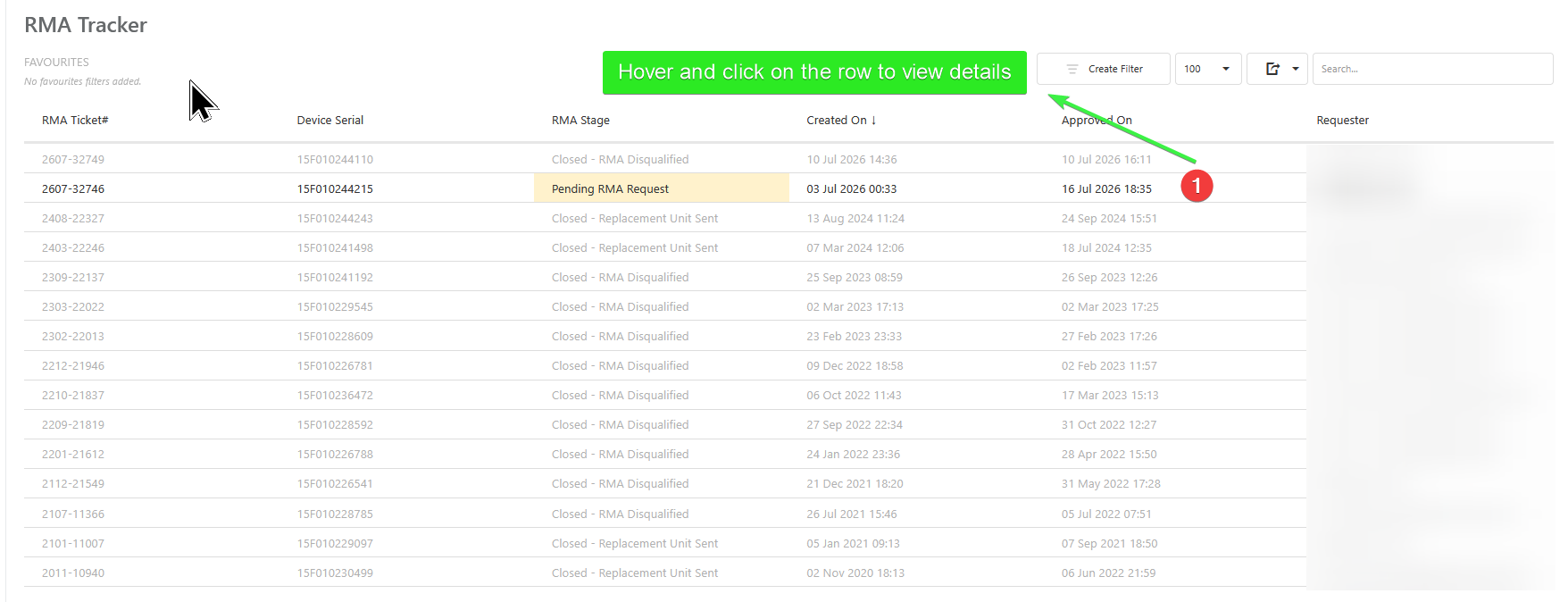
- Locate the RMA in the tree view.
- Select the required RMA.
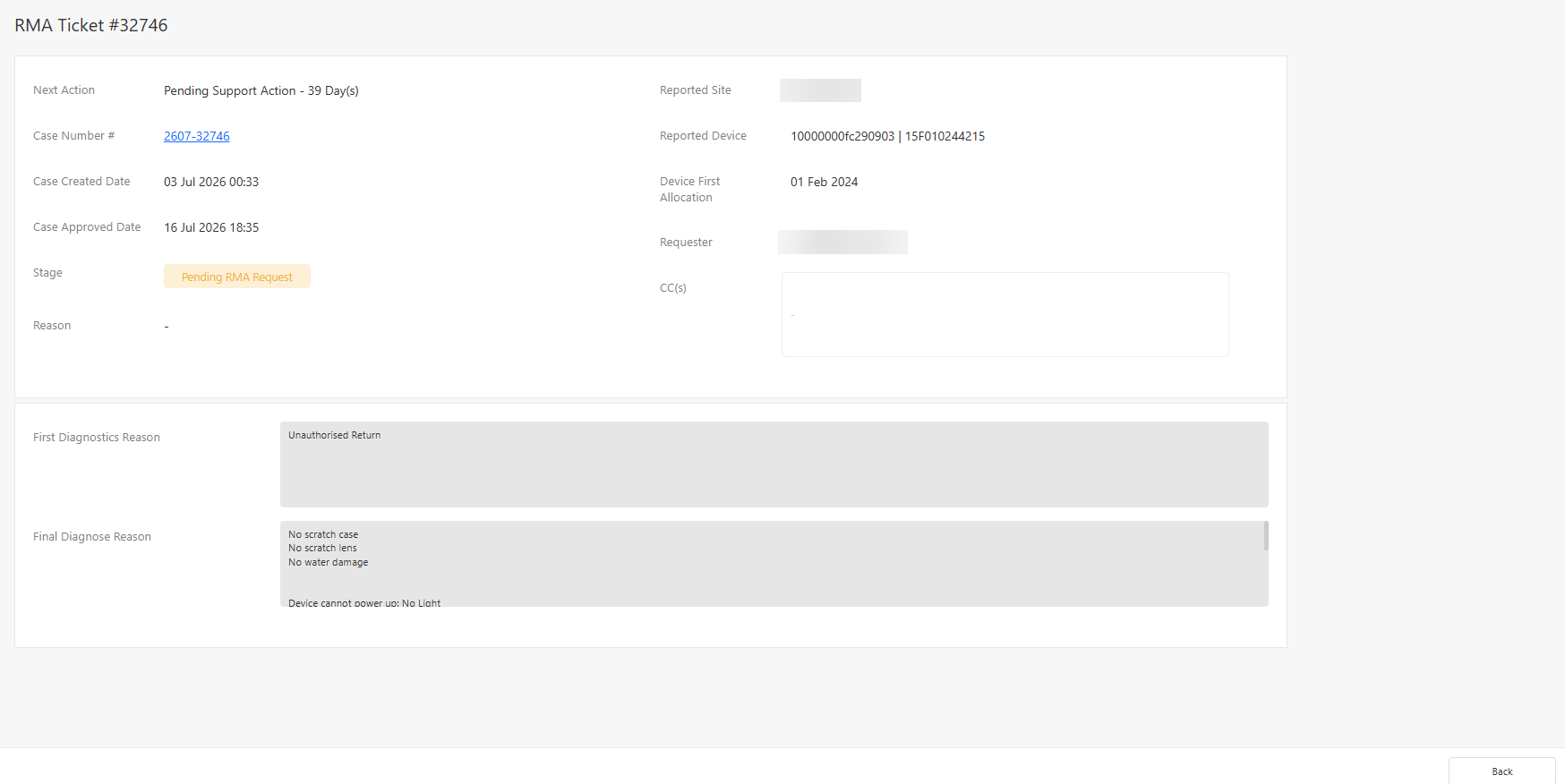
- Drill into the RMA record.
- Review the RMA details in the form view.
2.5 Work Order
The Work Order section allows you to manage engineer callout requests.
It contains two sections:
- New Request
- Review
2.5.1 New Request
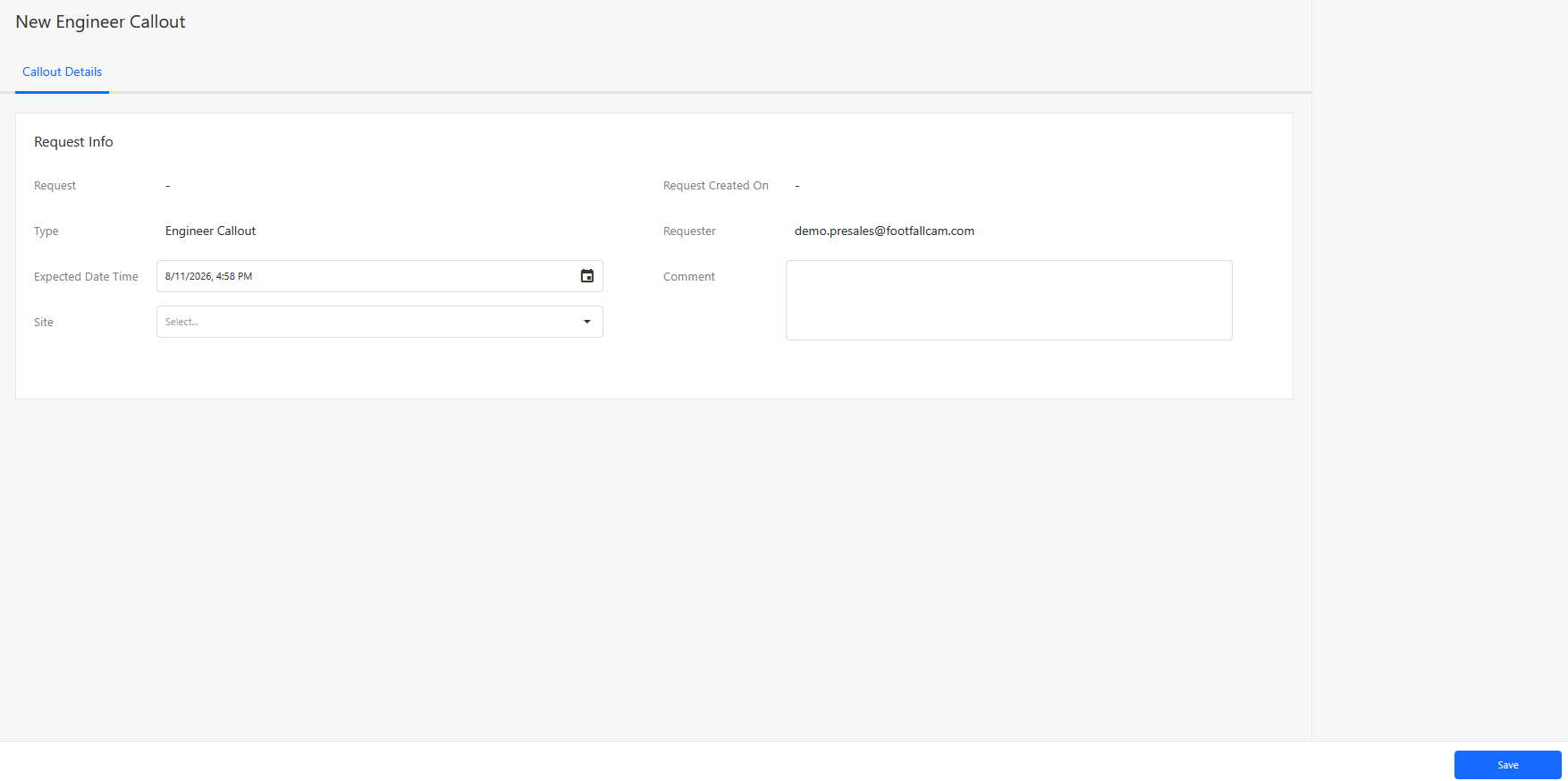
The New Request page allows you to create an engineer callout request when an engineer is required to attend your site.
This is intended for situations where the customer's own engineer will be handling the site callout.
Creating a New Request
To submit an engineer callout request:
- Navigate to Work Order → New Request.
- Enter the required information for the engineer callout.
- Review the information provided.
- Submit the request.

2.5.2 Review
The Review page allows you to view engineer callouts created by FootfallCam.
You can use the monthly filter to review engineer callout activity for a specific month.
What you can do
- View engineer callout requests.
- Filter requests by month.
- Check whether a request is New.
- Check whether a request is Ongoing.
- Check whether a request has been Completed.
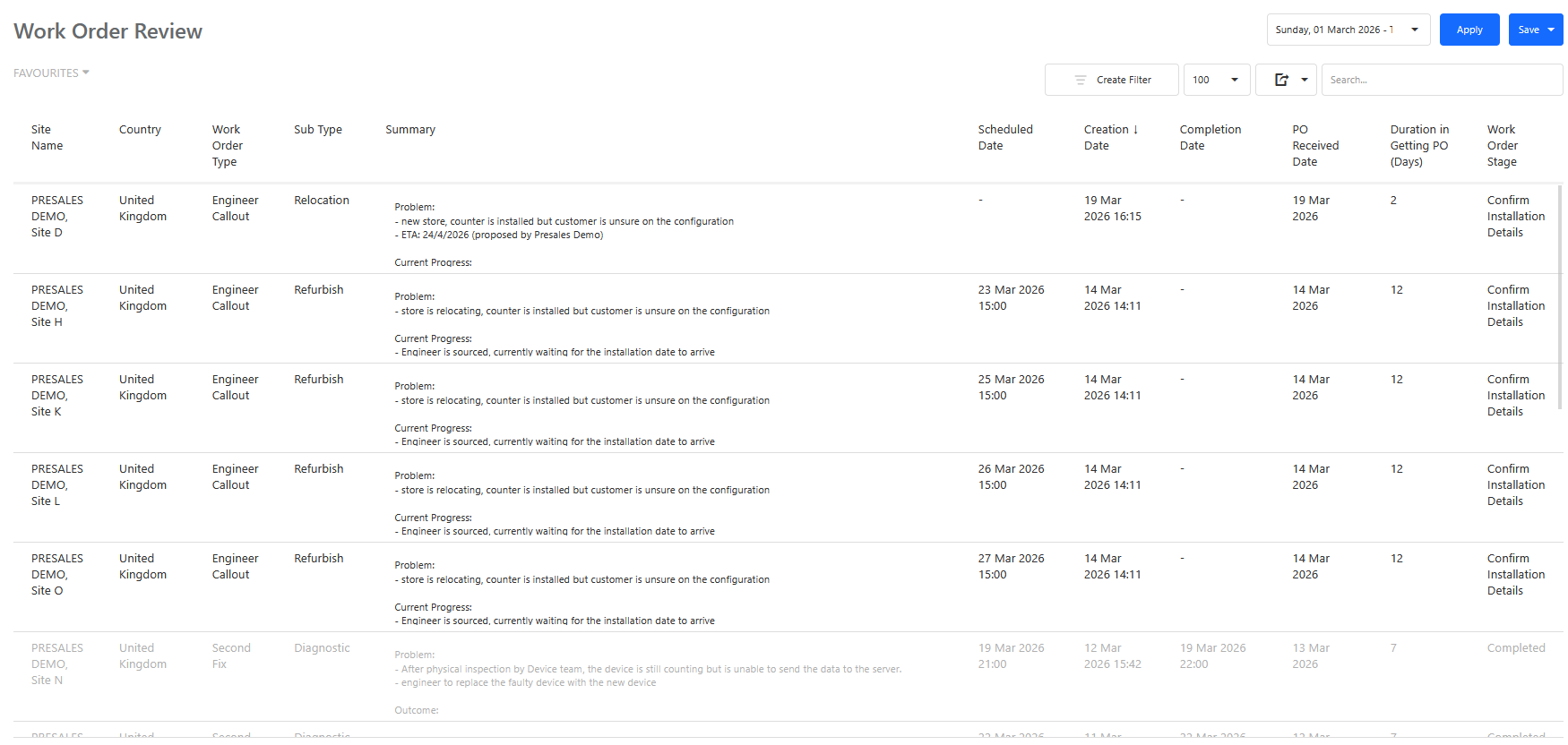
Work Order Stage
| Stage | Description |
| Confirm Installation Details | Footfallcam to get information from customer (IT details , addresses and etc.) |
| Completed | Installation is completed |
Monthly Filter
Use the monthly filter to view engineer callouts for a particular month.
This allows you to easily review your engineer callout history and monitor the progress of requests.
3. RACI Matrix
RACI stands for:
- R - Responsible: The person/team who performs the activity.
- A - Accountable: The person/team ultimately responsible for the outcome.
- C - Consulted: Provides information or assistance.
- I - Informed: Kept updated on the progress or outcome.
| Support 360 Activity | Customer | FootfallCam Support |
|---|---|---|
| View support ticket overview | R/A | I |
| Raise a new support ticket | R | A |
| Provide issue/request details | R | C |
| Review ticket status | R | I |
| Investigate support ticket | I | R/A |
| Resolve support ticket | I | R/A |
| View ticket history | R | I |
| Raise / view RMA request | R | A |
| Investigate RMA case | I | R/A |
| Provide RMA updates | I | R/A |
| Submit engineer callout request | R | A |
| Review engineer callout status | R | I |
| Arrange / manage FootfallCam engineer callout | I | R/A |
| Complete engineer callout | I | R/A |
| Confirm completion / provide required information | R | C |
Summary on RACI Matrix
| Area | Customer | FootfallCam |
|---|---|---|
| Support Tickets | Raise tickets, provide information and monitor progress | Investigate and resolve tickets |
| RMA | Submit/view RMA information and monitor progress | Manage and process RMA cases |
| Work Order | Submit engineer callout requests and monitor status | Manage and complete FootfallCam engineer callouts |