








1042 - Visitor In Monitor Alert
This rule is used to trigger email notification if there is no visitor detected for the past few hours.
Target Audience: Store operation staff
Trigger Condition: When the visitor count (PFC01_11) is 0 for the past <x> hours. Store operation manager can set the number of hours for notification triggers.
1044 - Washroom Cleaning Alert
This rule is used to trigger cleaning alert when the toilet usage exceeds the limit of the visitor set.
Target Audience: Washroom manager and washroom cleaner
Trigger Condition: When Washroom Usage (FC05_1) is greater than the limit <x>. Washroom manager can set the limit of washroom usage to notification triggers.
1250 - Device Event Capture Rule
This rule is used to record a short video clip from a device when a person crosses a line that you draw on the camera's live view. The rule only works on the days and times you choose.
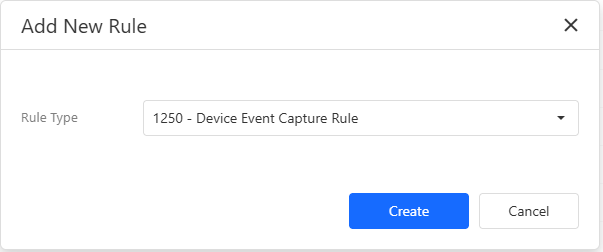
Step 1 - Rule
Open the Rules page and create a new rule with the template 1250 - Device Event Capture Rule. Fill in the Rule section first.
Rule Template: Shown for information only.
Rule Name: Enter a name for the rule. This is required.
Entity Level: Always Device. It cannot be changed.
Apply To: Select the device. You can search by serial, camera name, company serial or site. This is required. Once the rule is saved the device cannot be changed. To use another device, create a new rule.
Active: Tick this to make the rule active.
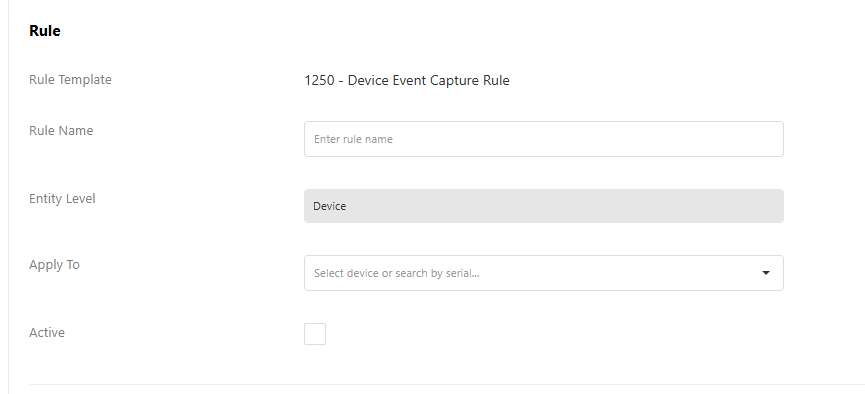
Step 2 - Event Capture
Channel: Select one or more channels of the device. A new rule starts with Channel 0. At least one channel is required.
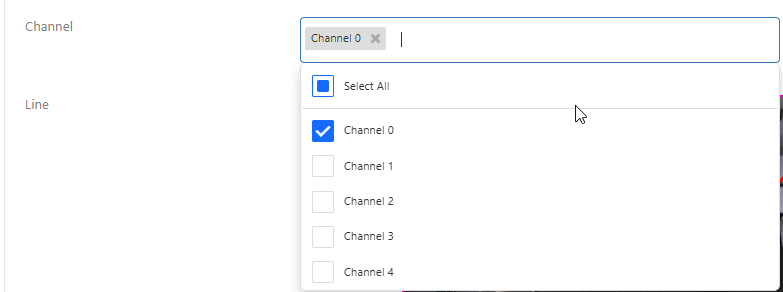
Line: Each selected channel has its own line. A line is made of 2 to 30 points, and the camera's live view is shown under the channel so you can draw on it. The default line runs from the left edge to the right edge, halfway down.
- Drag a point to move it.
- Double-click on the line to add a point at that spot, or double-click on empty space to add a point at the end.
- Right-click a point to remove it. The line always keeps at least 2 points.
- Below the live view, the Points list shows the X and Y of every point (each from 0 to 1, measured from the top-left corner of the picture). You can type the values here, add a point after a given point with the + icon, or delete a point with the x icon. The list shows 5 points at a time, so scroll it to see the rest.
If the live view cannot be loaded, you can still set the line by editing the Points list.
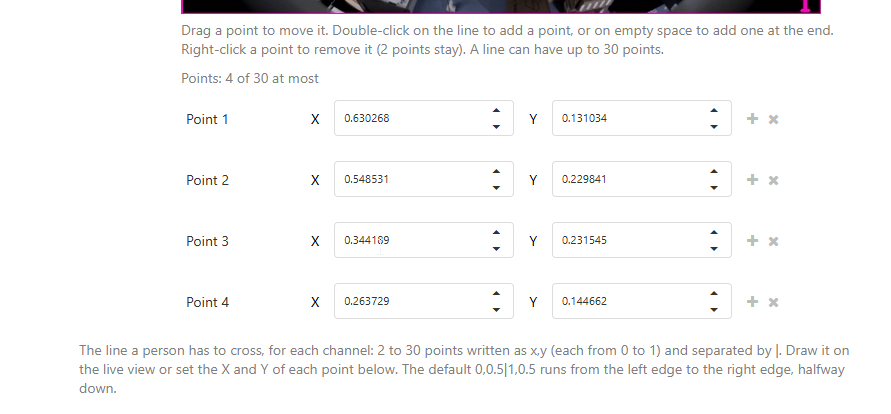
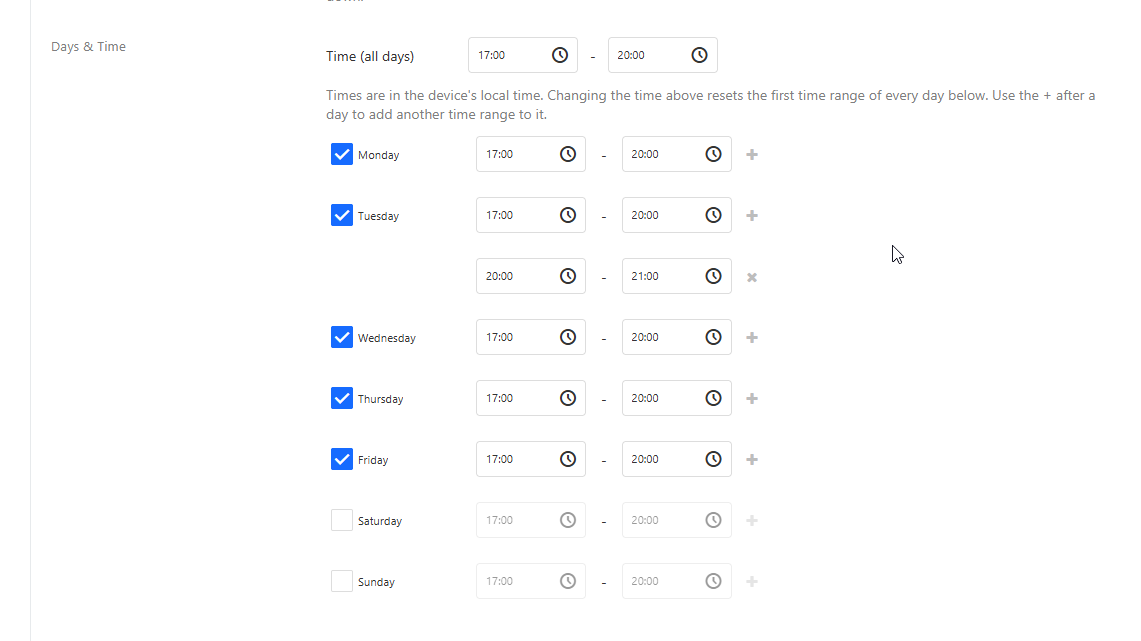
Days & Time: Choose when the rule is allowed to record. Times are in the device's local time.
- Tick the days the rule should run. No day is ticked on a new rule, so tick at least one.
- Set the start and end time of each ticked day (HH:mm).
- Time (all days) at the top sets the same time on every day. Changing it resets the first time range of every day below.
- Click the + after a day to add another time range to that day, for example 09:00 - 12:00 and 14:00 - 18:00. Click the x to delete a range you added.
- The end time must be later than the start time, and the time ranges of one day must not overlap.
Step 3 - Alert
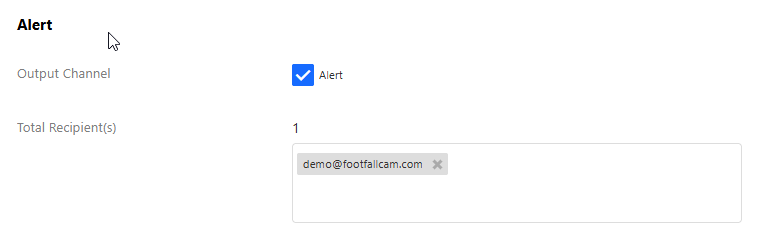
Output Channel: Alert is ticked by default. Untick it if nobody needs to be alerted for this rule.
Total Recipient(s): Shows how many recipients are selected. Pick company users from the list, or type an email address and press Enter. A valid email address is required. While Alert is ticked, at least one recipient is required. If Alert is unticked, no recipient is needed.
Note: For now the alert settings are only saved together with the rule. They are not sent to the device.
Step 4 - Save
Click Save at the bottom of the page. If anything is missing, the field is marked in red and the rule is not saved. When it is saved, a message Save Successful. Click OK to return to the Rules page. appears and the rule is sent to the device. Click Cancel to leave without saving. You are asked to confirm first because unsaved changes will be lost.
Messages you may see
Rule Name is required: Enter a rule name.
Device is required: Select a device in Apply To.
Select at least one channel: Select a channel.
Use 2 to 30 points written as x,y (each from 0 to 1): The line is not valid. Check the values in the Points list.
A line can have at most 30 points. / A line needs at least 2 points.: You tried to add or remove a point beyond the limit.
Select at least one day: Tick a day in Days & Time.
End time must be later than start time: Change the end time.
The time ranges of one day must not overlap: Change the time ranges of that day so they do not overlap.
Please select at least one recipient: Add a recipient, or untick Alert.
Please enter a valid email format: The typed text is not a valid email address.