Partner Portal UI Update
Introduction
At the heart of our newly launched Partner Portal UI lies the principle of minimalism. Our goal is to deliver a streamlined, clutter-free home screen, fostering a more efficient and user-friendly experience.
The latest Partner Portal UI has been compartmentalized into four primary sections for ease of navigation:
Project, Commercial, Support, and Settings.
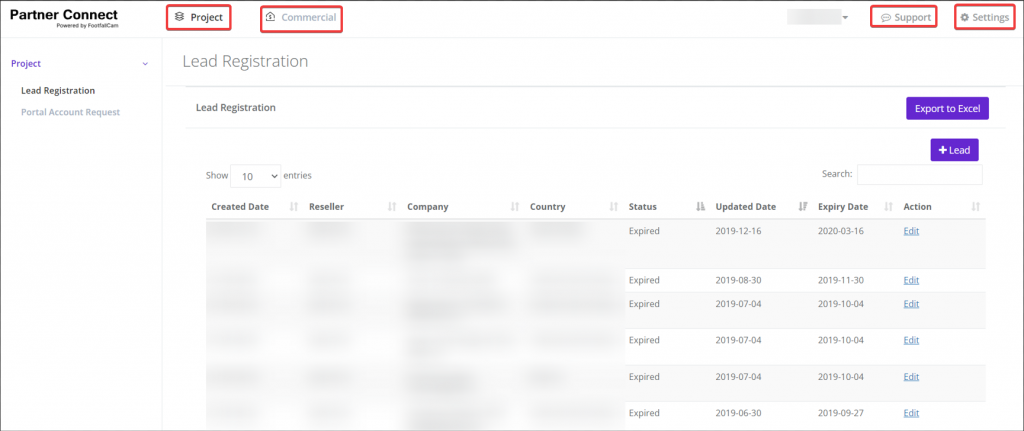
The newly released Partner Portal UI
Project
Under the Project section, two options could be discovered: Lead Registration and Portal Account Request.
Lead Registration
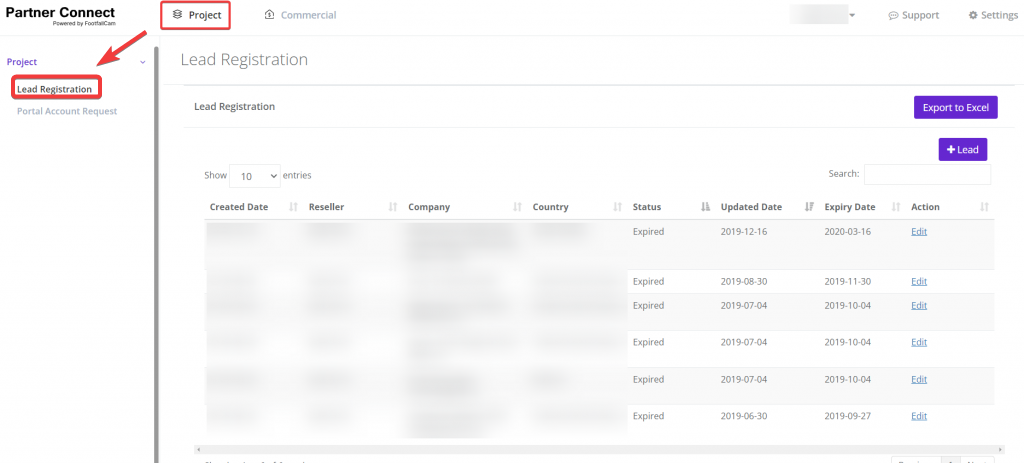
*New UI: Lead Registration*
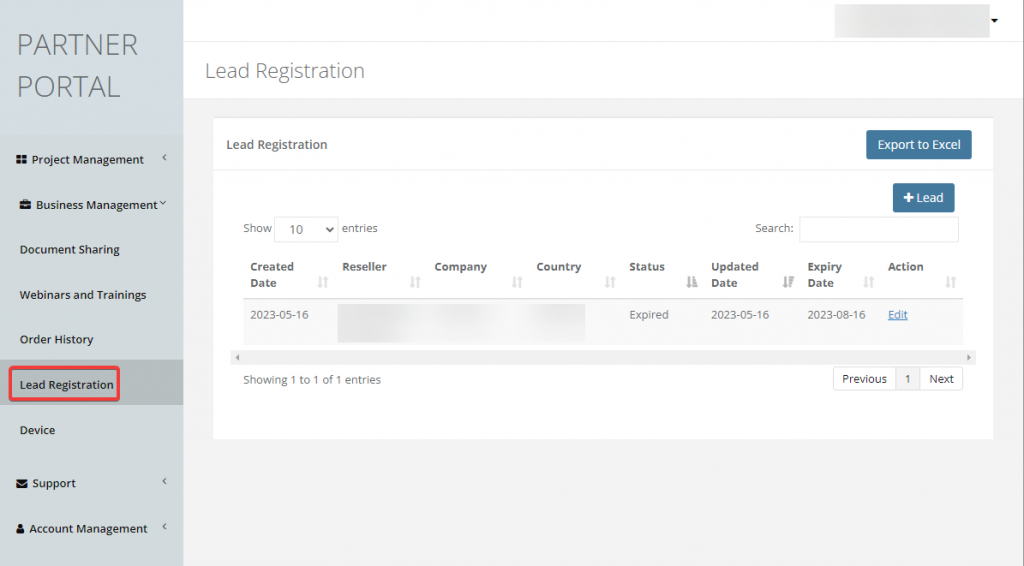
*Legacy UI : Lead Registration*
Portal Account Request

*New UI: Portal Account Request*
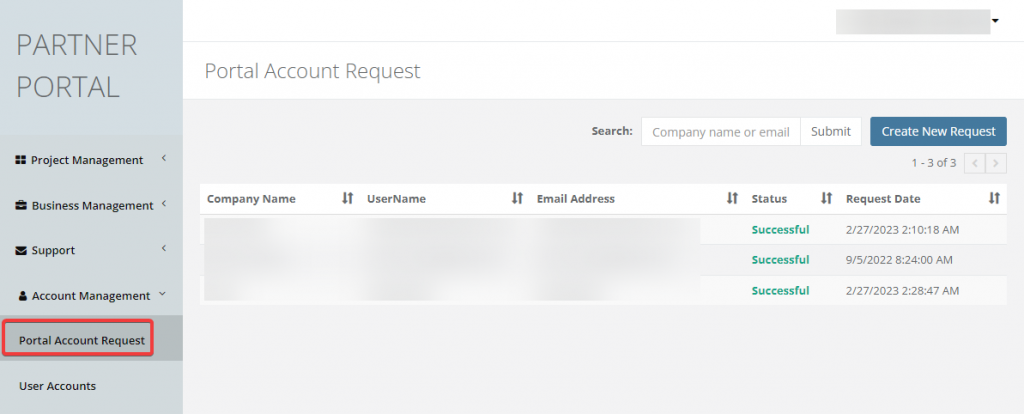
*Legacy UI: Portal Account Request*
Commercial
Within the Commercial section, Order History could be accessed.
Order History
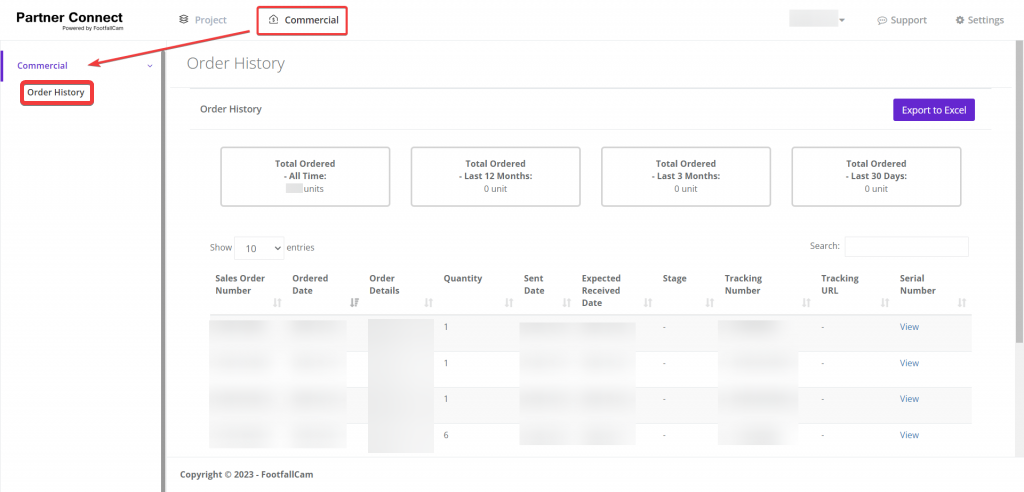
*New UI: Order History*
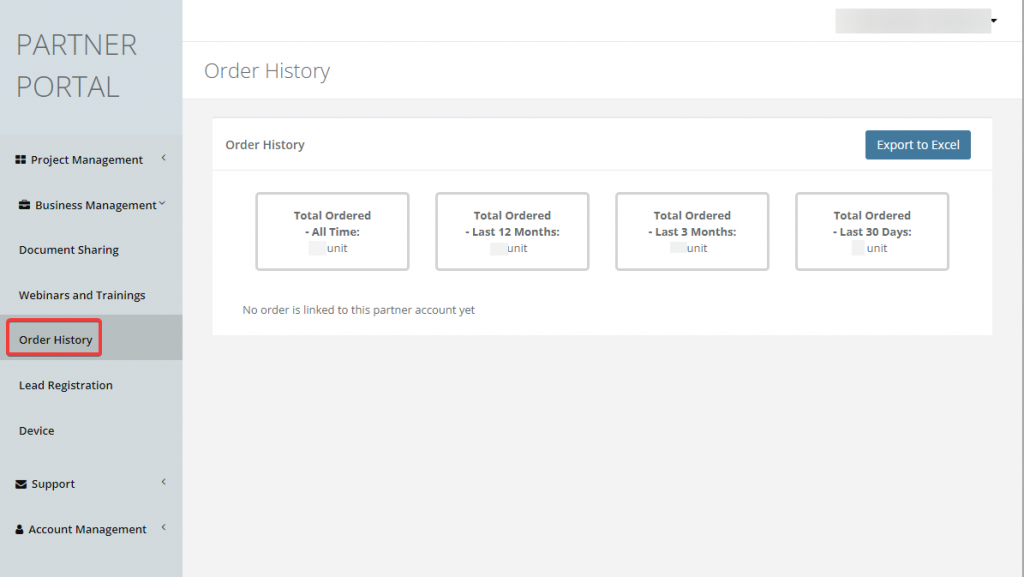
*Legacy UI: Order History*
Support
The Support section includes Support and Resources.
Support Tickets could be accessed within the Support section.
In the Resource section, Documentation & Webinars and Trainings options could be found.
Support Tickets
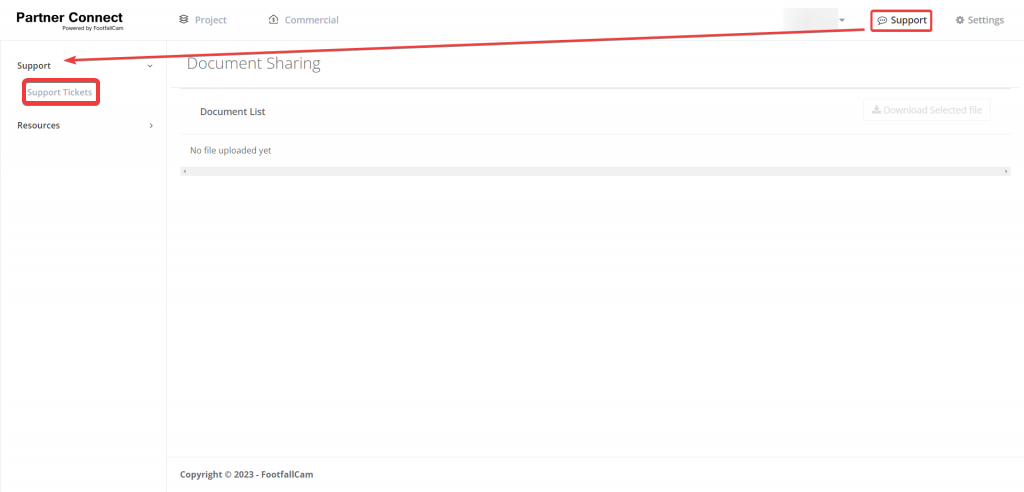
*New UI : Support Tickets*
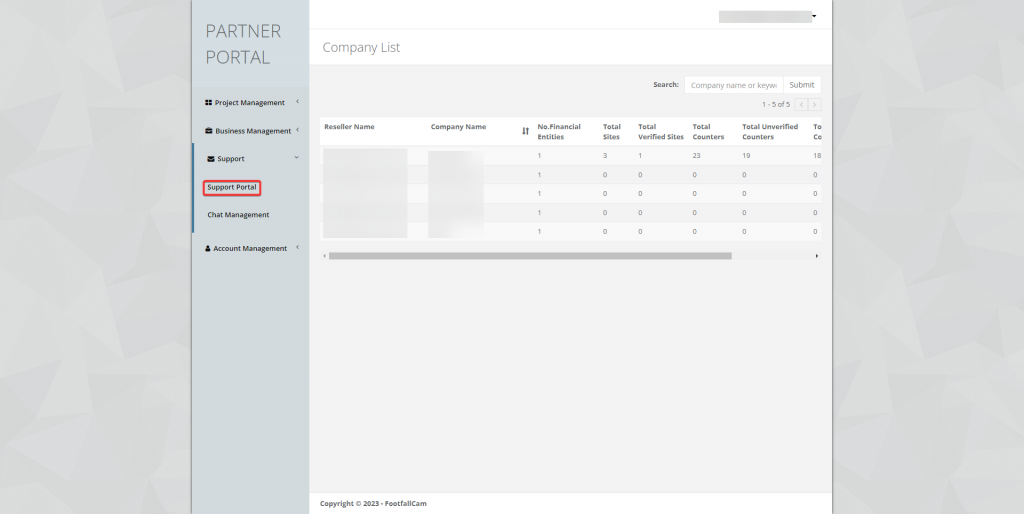
*Legacy UI : Support Portal*
Documentation
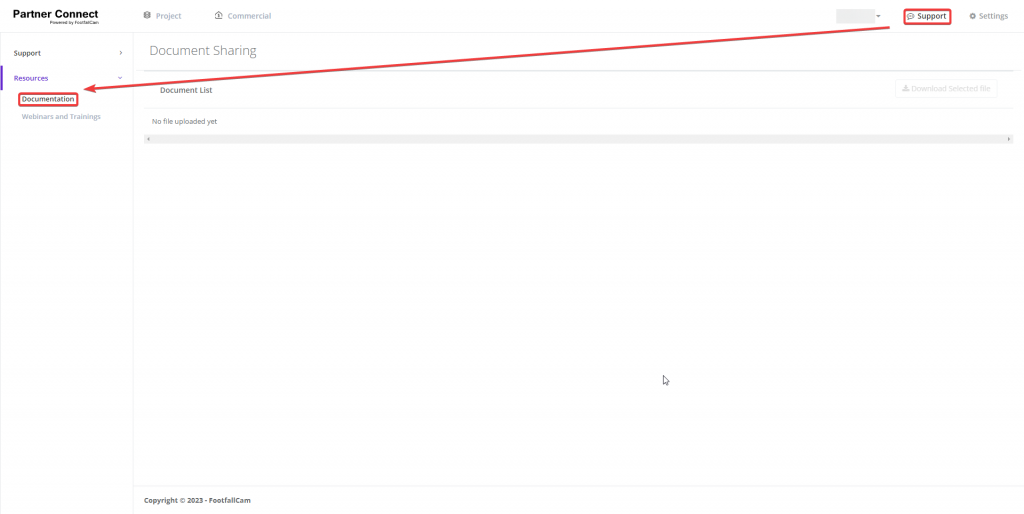
*New UI: Documentation*
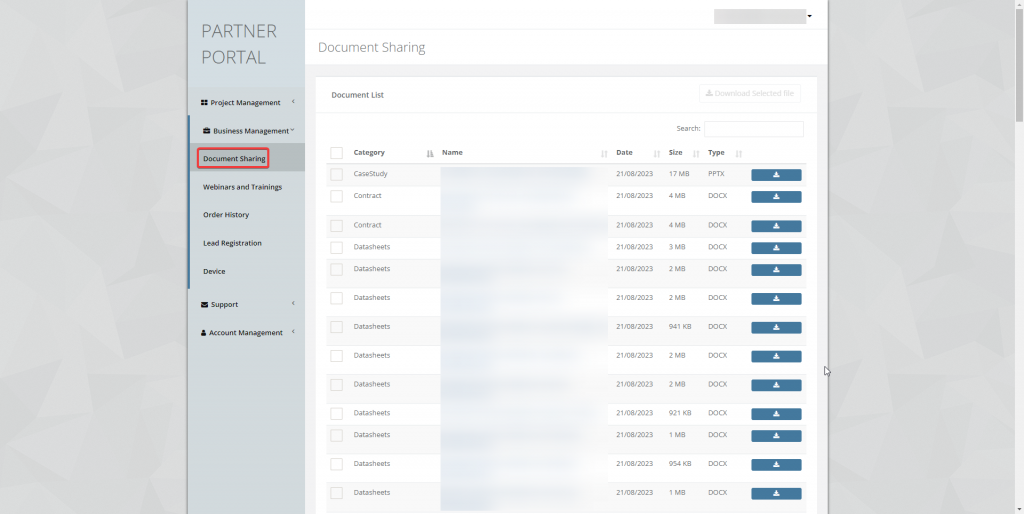
*Legacy UI: Documentation Sharing*
Webinars and Trainings
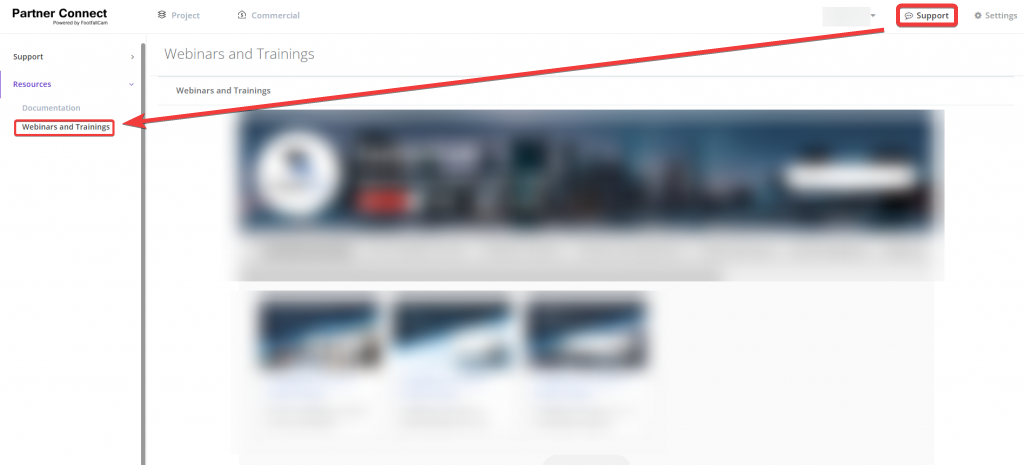
*New UI : Webinars and Trainings*
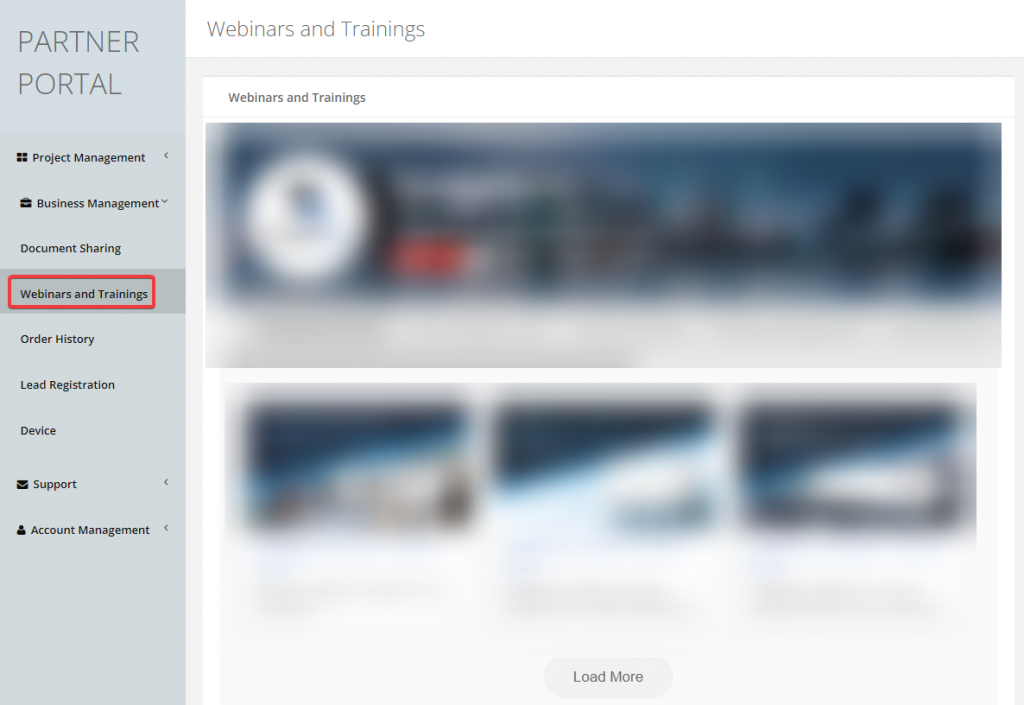
*Legacy UI : Webinars and Trainings*
Settings
The Settings section includes Company, Financial Entity, Device, User and Chat management.
Company
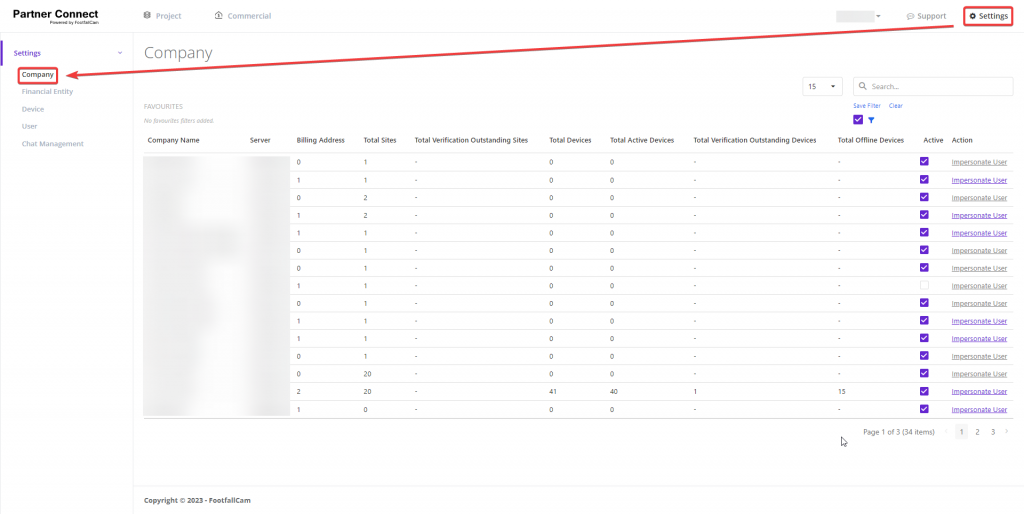
*New UI : Company*
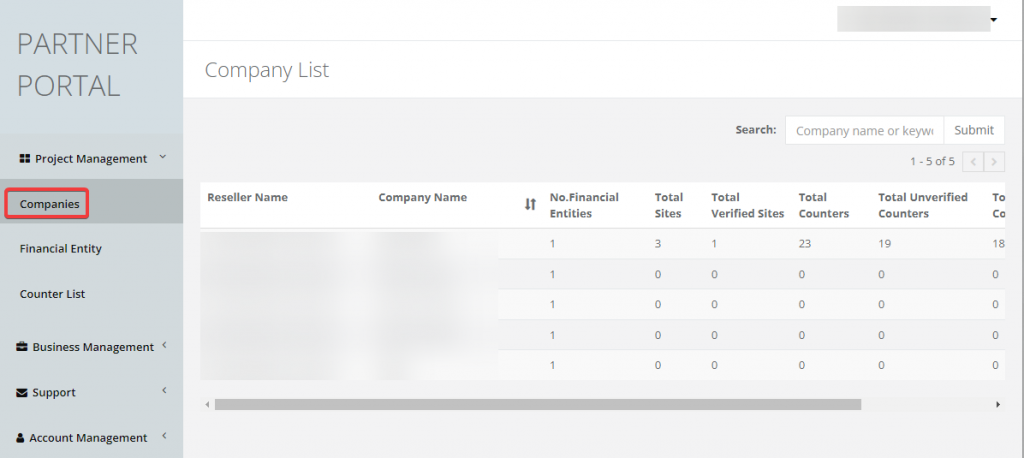
*Legacy UI: Companies*
New Feature: User Impersonation
Within the Company section, we're introducing a brand-new feature: Impersonate User.
This feature allows our reseller to have the capability to act as or impersonate the user registered under their reseller account.
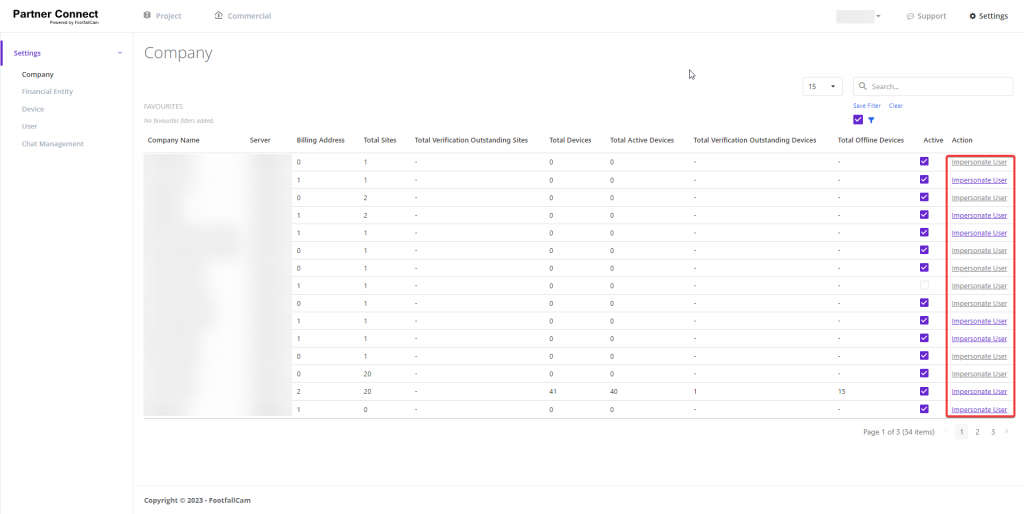
Select the desired company for impersonation, then click on the associated purple link
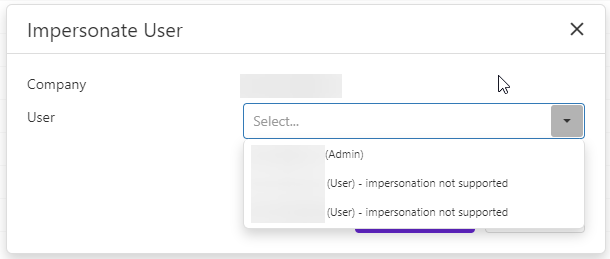
Select a user from the dropdown

Click the "Impersonate" button to start impersonating the user
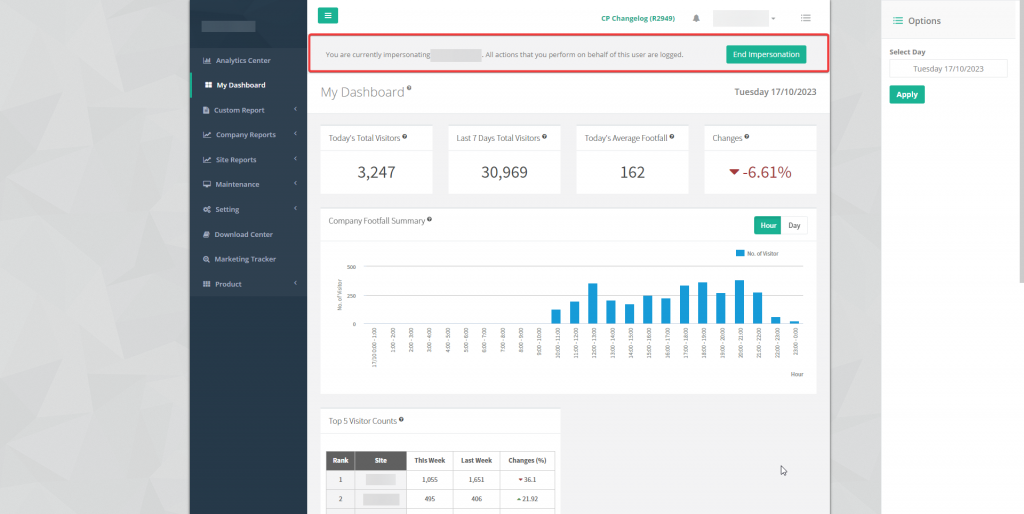
The web browser will be automatically redirected to Analytics Manager V9 and a banner will consistently appear across all pages within Analytics Manager V9
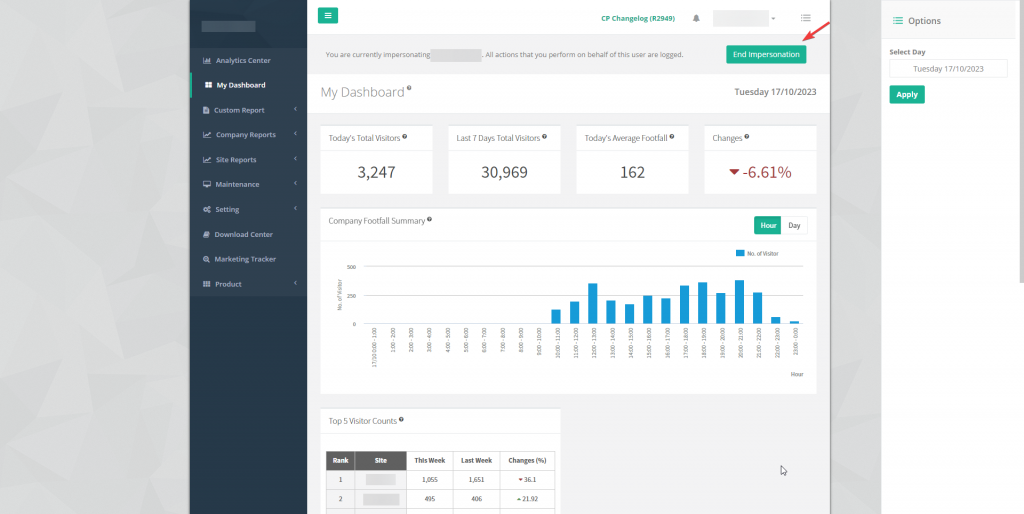
Click "End Impersonation" button to end impersonation session
When the impersonation session is terminated, the reseller will be redirected back to the Partner Portal.
Financial Entity
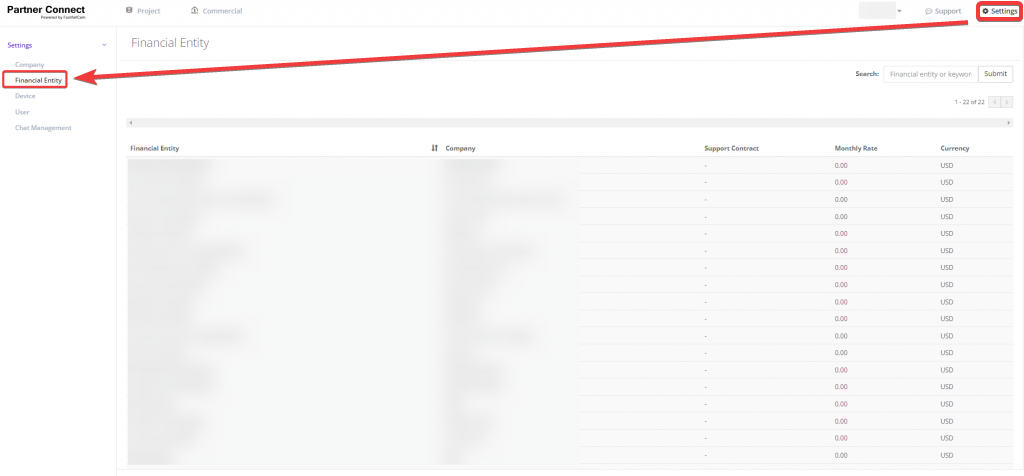
*New UI: Financial Entity*
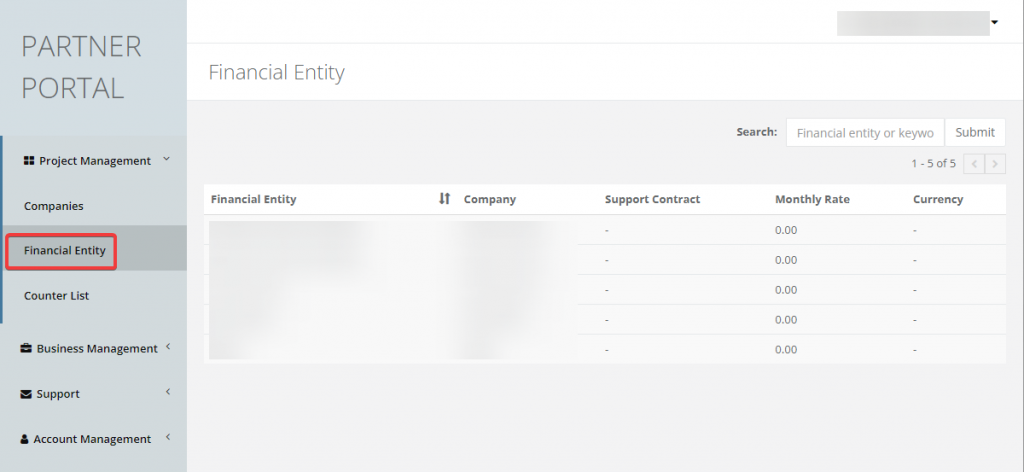
*Legacy UI : Financial Entity*
Device
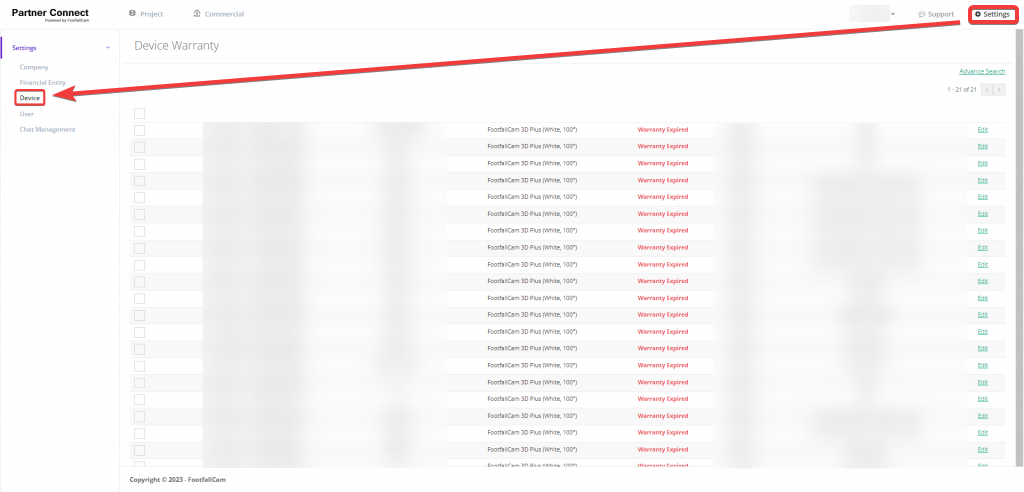
*New UI: Device*
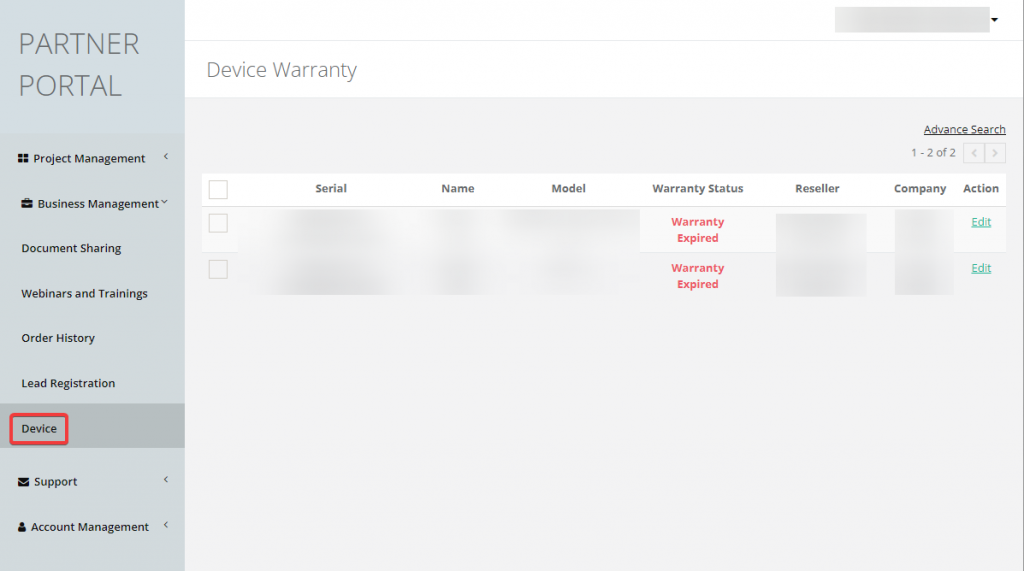
*Legacy UI: Device*
User
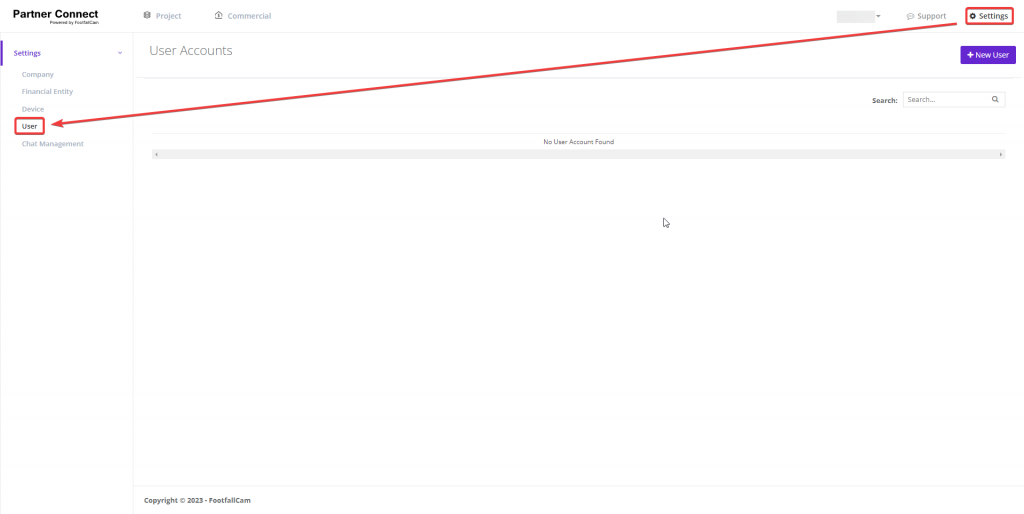
*New UI: User*
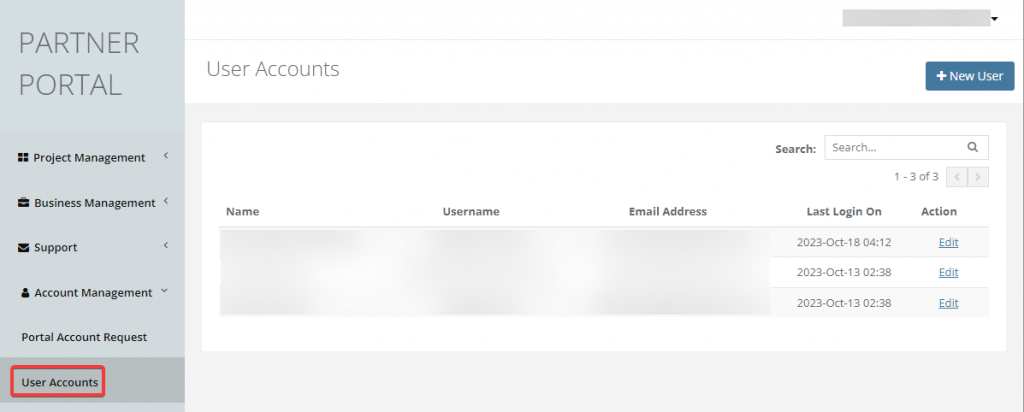
*Legacy UI : User Accounts*
Chat management

*New UI: Chat Management*
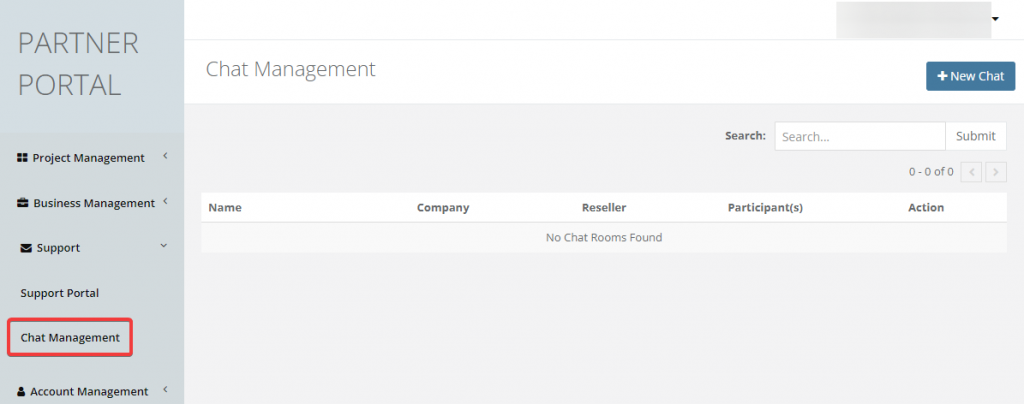
*Legacy UI: Chat Management*
This guide is designed to help you navigate the new features and changes implemented in the Partner Portal UI.
----